
WSL2 / Docker “CreateVm timed out” error on Windows
When installing the Edge agent on Windows, Docker Desktop may fail to start with a WSL virtual-machine error such as:
The operation timed out because a response was not received from the virtual machine or container.
Wsl/InstallDistro/Service/RegisterDistro/CreateVm/HCS_E_CONNECTION_TIMEOUT
What this means
WSL2 runs Linux inside a lightweight Hyper-V virtual machine, and Docker Desktop runs on top of WSL2. This error means Windows creates that VM but never gets a response from it, so it times out. Because it fails the same way for every Linux distribution, the problem isn't Docker, the distribution, or the Edge agent — it's that hardware virtualization isn't available to Windows on this machine.
This is a host-environment configuration issue and is resolved on the machine hosting the Edge. The fix depends on whether the host is a physical PC or itself a virtual machine.
First, identify the machineOpen Task Manager → Performance → CPU and check the lower-right corner:
- Virtual machine: No → physical PC. Follow Option A.
- Virtual machine: Yes → this is a VM (VDI, cloud, or a Hyper-V/VMware/VirtualBox guest). Follow Option B.
Option A — Physical PC
Most likely cause: hardware virtualization is switched off in the BIOS.
- Reboot and enter BIOS/UEFI (usually F2, F10, or Del at startup).
- Enable Intel VT-x or AMD-V / SVM Mode (under Advanced, CPU Configuration, or Security). Save and exit.
- Back in Windows, in an Admin PowerShell, enable the platform features:
dism.exe /online /enable-feature /featurename:VirtualMachinePlatform /all /norestart
dism.exe /online /enable-feature /featurename:Microsoft-Windows-Subsystem-Linux /all /norestart- Restart the PC — required for the features to take effect.
- Install the distribution:
wsl --install -d Ubuntu
Option B — Virtual machine
Most likely cause: nested virtualization isn't enabled — a VM can't run its own VM without it. On the host/hypervisor (not inside the guest), enable nested virtualization for this VM:
- Hyper-V — with the VM powered off, run on the host:
Set-VMProcessor -VMName "<VMName>" -ExposeVirtualizationExtensions $true- VMware vSphere / ESXi (web client) — with the VM powered off: Edit Settings → Virtual Hardware → expand CPU → Hardware virtualization, tick "Expose hardware assisted virtualization to the guest OS", click OK, then power the VM back on. (In VMware Workstation/Fusion the equivalent is VM → Settings → Processors → "Virtualize Intel VT-x/EPT or AMD-V/RVI".)
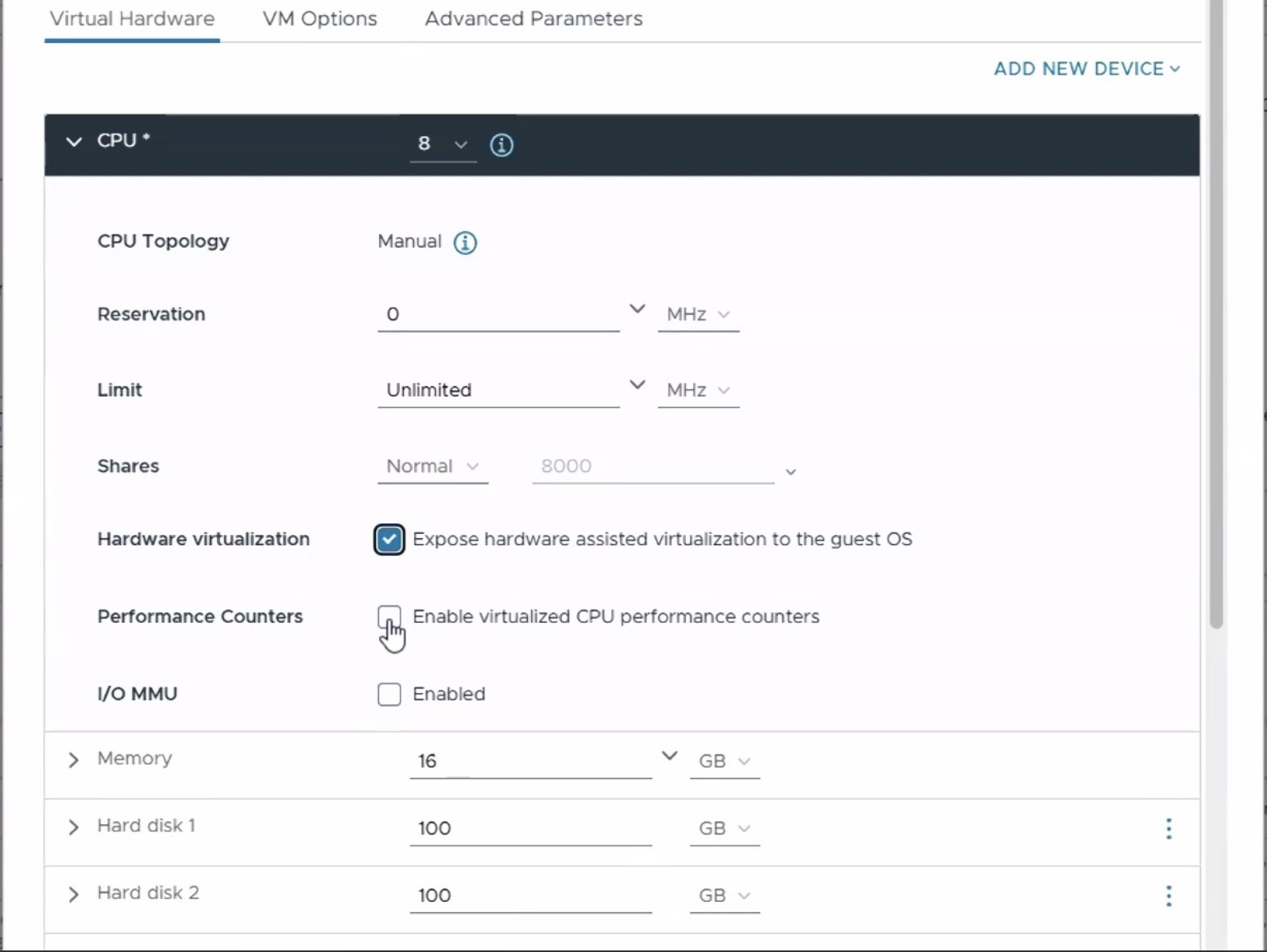
The exact screen varies by VMware/vSphere version, but the setting is the same — look under the VM's CPU / Processor settings for "Expose hardware assisted virtualization to the guest OS" (or "Virtualize Intel VT-x/EPT or AMD-V/RVI") and enable it.
- Oracle VirtualBox — see the dedicated section below.
- Cloud VM — confirm the instance size supports nested virtualization (many standard tiers don't; you may need to resize).
Then power on, run the two dism commands from Option A, restart, and run wsl --install -d Ubuntu.
Oracle VirtualBox
If Windows is running as a VirtualBox guest, enable nested virtualization on the VM:
- Power the VM off completely (not just save-state).
- In VirtualBox Manager: select the VM → Settings → System → Processor → tick "Enable Nested VT-x/AMD-V". Command-line equivalent:
VBoxManage modifyvm "<VMName>" --nested-hw-virt on- Give the VM 2+ CPUs and ample RAM — WSL2's VM needs headroom.
- Boot Windows, run the two
dismcommands from Option A, restart, thenwsl --install -d Ubuntu.
Two catches to expect:
- "Enable Nested VT-x/AMD-V" is greyed out — usually VirtualBox is older than 6.1 (update to 7.x), or Hyper-V / Core Isolation is enabled on the physical host and is holding the virtualization extensions. Free those up on the host first.
- Performance — WSL2 inside VirtualBox is virtualization several layers deep; it works but can be slow for a long-running agent.
Confirm it worked
After the restart and install, check that a distribution is registered at version 2:
wsl -l -vYou want Ubuntu listed with VERSION 2. Once it is, start Docker Desktop — the "WSL not installed" and CreateVm errors will be gone, and you can resume the Edge agent install.
Recommended for productionFor a reliable, long-running deployment we recommend running the Edge agent on a Linux host (Ubuntu or Debian) rather than Windows. Docker runs natively there — no WSL or Hyper-V layer — and it starts automatically on boot, avoiding this entire class of virtualization issue.
Updated 3 days ago