
ServiceNow
Connect ServiceNow to Xyte for two-way incident sync. Xyte device incidents automatically open, update, and close ServiceNow incidents — and, optionally, changes made in ServiceNow sync back to Xyte.
The ServiceNow integration keeps device incidents in sync between Xyte and your ServiceNow instance.
- Outbound (Xyte → ServiceNow) — when Xyte raises a device incident it creates a matching ServiceNow incident, pushes updates when the incident changes, and resolves the ServiceNow incident when the Xyte incident is resolved. This works as soon as the integration is connected and enabled.
- Inbound (ServiceNow → Xyte) — optional. When an agent updates or resolves the incident in ServiceNow, the change can flow back to Xyte. This is set up with a small ServiceNow Business Rule (see Two-way sync).
Share the questionnaire firstSend the ServiceNow questionnaire to your ServiceNow admin before you start. It lists every answer you need to complete this setup yourself.
Before you start
You'll need:
- Your ServiceNow instance URL — the full address, e.g.
https://acme.service-now.com. - A dedicated service account in ServiceNow (a least-privilege user, not a personal admin login). It needs:
- The
itilrole (read/write access to the Incident table). - Read access to the
sys_dictionarytable — Xyte reads it to offer field names during field mapping. Without it, mapping falls back to free-text entry. - Read access to the
sys_choicetable — Xyte reads it to pick a valid resolution code when it resolves an incident.
- The
- Depending on the authentication method you choose, an OAuth API endpoint registered in ServiceNow (see below).
Use a dedicated service accountCreate a user just for this integration. It makes the activity auditable and lets you revoke access without affecting anyone else.
Authentication methods
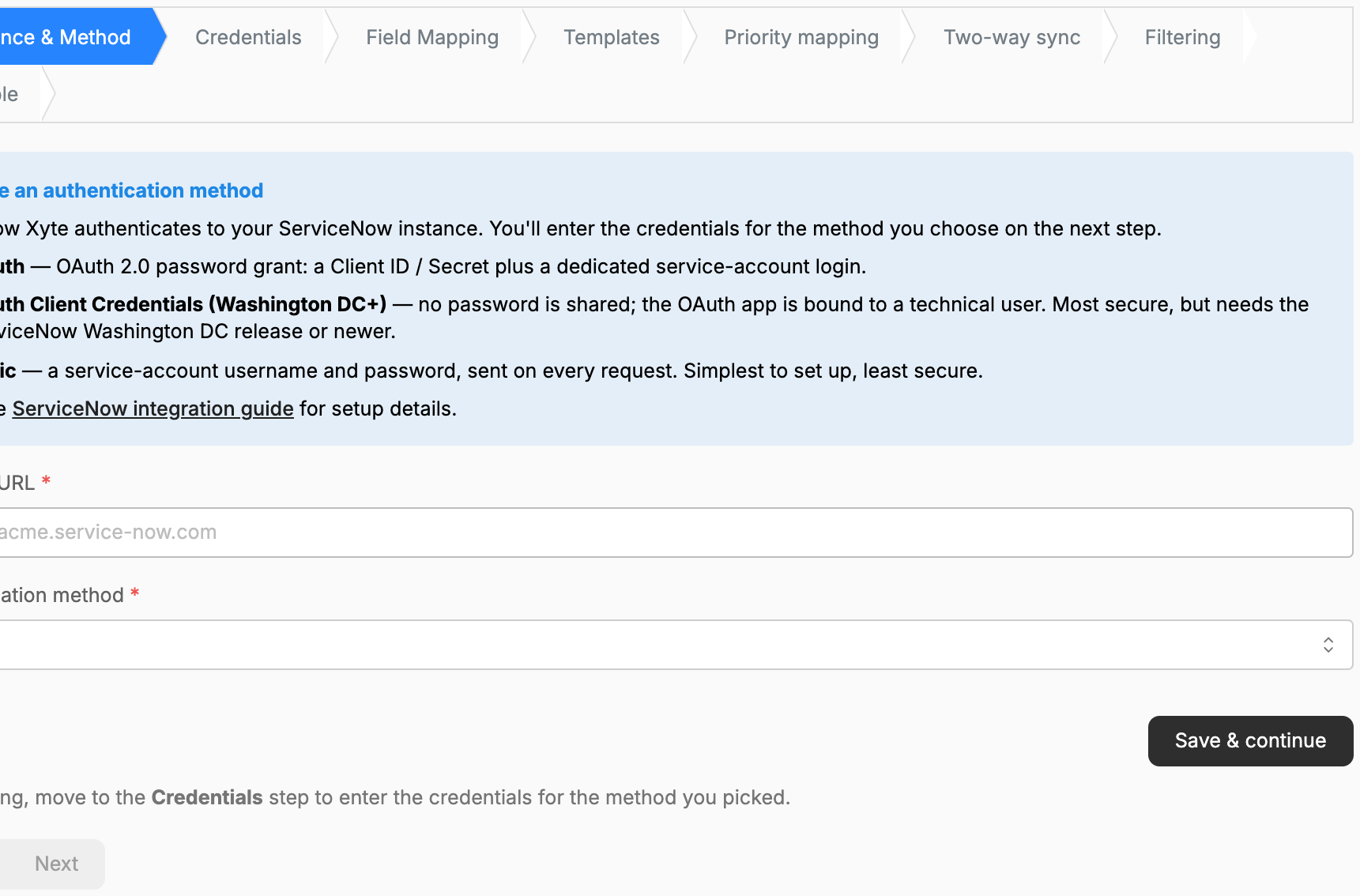
Pick the method that fits your instance during the first step of the wizard. Xyte supports three.
OAuth — password grant (recommended)
OAuth 2.0 with a Client ID/Secret plus the service-account login. Xyte exchanges the credentials for a token and refreshes it automatically.
- In ServiceNow go to System OAuth → Application Registry and create an OAuth API endpoint for external clients. Copy the generated Client ID and Client Secret.
- Set the application's Scope Restriction to Broadly scoped. If you leave it endpoint-scoped, the Table API returns HTTP 403 and the connection test fails.
- Have the service-account username and password ready — Xyte exchanges them for the token.
OAuth — Client Credentials (Washington DC and newer)
The most secure option: no password is shared. The OAuth app is bound to a technical user inside ServiceNow.
Requires the ServiceNow Washington DC release or newer. Note that the OAuth endpoint form has no grant-type selector by default — the client-credentials grant is enabled implicitly once the instance property is on and an OAuth Application User is assigned (steps 1 and 3 below). You do not pick "Client Credentials" anywhere on the form.
- Make sure the client-credentials grant is enabled instance-wide: the system property
glide.oauth.inbound.client.credential.grant_type.enabledmust be true. (If it isn't, token requests fail with a401.) - Create the OAuth API endpoint the same way as above (System OAuth → Application Registry → OAuth API endpoint for external clients), and copy the Client ID and Client Secret.
- Assign an OAuth Application User — the technical user the token's calls run as. This field is hidden on the default form, so first add it: on the OAuth endpoint record choose Configure → Form Layout (or Form Builder), add the OAuth Application User field, Save, then set it to your service account and Save again. (Alternatively, add the OAuth Application User column in the Application Registry list view and set it there.) The user isn't password-authenticated — ServiceNow simply runs the token's requests as this user, so its roles are what matter: it needs the
itilrole for the Incident table. - Set Scope Restriction to Broadly scoped.
- You only enter the Client ID and Client Secret in Xyte — no username/password.
Basic
A service-account username and password, sent on every request. Simplest to set up, least secure — the credentials travel on each call, so use a least-privilege account and prefer OAuth where you can.
Broadly scoped is required for OAuthFor both OAuth methods, the OAuth application's Scope Restriction must be Broadly scoped. An endpoint-scoped app cannot call the Table API and will return 403 — unscoped api not allowed.
Step 1 — Connect in Xyte
- In the Xyte Organization portal, open Settings → Integrations → Ticketing System and choose ServiceNow.
- Work through the connect wizard:
- Instance & Method — enter the full Instance URL and pick an authentication method.
- Credentials — enter the credentials for the method you chose, then Test connection and Save & Connect.
- Field Mapping (optional) — map extra ServiceNow fields. See Field mapping.
- Templates (optional) — customize the incident's short description and description. See Ticket text templates.
- Priority mapping (optional) — remap Xyte's priorities onto ServiceNow's Impact/Urgency model.
- Two-way sync (optional) — set up the inbound webhook. See Two-way sync.
- Filtering (optional) — report only incidents at or above a chosen priority.
- Enable — turn the integration on.
Every step saves itselfEach step has its own save button — Save & Connect, Update, Save templates, Save filtering, Activate. The Prev / Next buttons only move between steps and save nothing, so leaving a step without clicking its own button discards what you entered there.
Once enabled, the next Xyte device incident will create a ServiceNow incident automatically.
Field mapping (optional)
Many instances make certain incident fields mandatory (Caller, Category, Assignment group) or use custom u_* fields. In the Field Mapping step you can set these so every incident Xyte creates is accepted:
- Add a row per field. Choose the ServiceNow field (auto-completed from your instance's schema when available), then a source:
- Static value — a fixed value (e.g.
category = hardware). Set only when the ticket is created. Xyte never re-sends it on update or close, so a ticket your team reassigns in ServiceNow (for example to another Assignment group) keeps its new value. - Xyte field — pulled from the Xyte device/incident (device name, serial, space, incident priority, etc.). Sent on create, update and close.
- Static value — a fixed value (e.g.
- Xyte's own canonical fields (description, priority, correlation) always take precedence over custom mappings.
Ticket text templates (optional)
The Templates step controls the two text fields Xyte writes on every ServiceNow incident it creates: the short description and the description. Both are optional — leave a field blank and Xyte keeps its built-in behavior (the incident title for the short description; the full structured device/space details for the description).
Type any text and insert {key} placeholders, which are replaced with that incident's values when the incident is created — for example:
{title} - {priority} - {space_name}The step has two fields and one button:
- Short description template — a single line. Its placeholder text shows the default,
{title}. - Description template — a multi-line field. Leave it blank for the default structured details.
- Save templates — saves both fields. The step is the fourth in the wizard, after Field Mapping.
Clicking a key under Available keys appends it to the description field, not to the short description — type placeholders into the short description yourself.
How placeholders behave
- A key with no value for that incident renders as nothing, and the rest of the line is kept.
- An unrecognized key (a typo, for example) is sent through as written, so a mistake is visible in the incident rather than silent.
- Only letters, digits and underscores are recognized inside the braces:
{space_name}works,{space name}is left as plain text. - The short description template is applied when the incident is created and on every later update. The description template is applied only at creation — Xyte deliberately never rewrites the description afterwards, so a two-way sync can't echo it back and forth.
Available keys
| Placeholder | Description | Example |
|---|---|---|
{title} | Incident title | Camera offline |
{description} | Incident description | Device stopped responding |
{incident_id} | Short incident ID | 4821 |
{status} | Incident status | Open |
{priority} | Priority — Critical, High, Moderate, Low, or Planning | High |
{assignee} | Assigned user (blank when unassigned) | Jane Doe |
{created_at} | When the incident was created | 2026-09-10T08:14:02Z |
{closed_at} | When the incident was closed | 2026-09-10T10:02:41Z |
{fixed_at} | When the incident was marked fixed | 2026-09-10T09:55:12Z |
{updated_at} | When the incident was last updated | 2026-09-10T09:20:00Z |
{xyte_link} | Link to the incident in Xyte | https://app.xyte.io/incident/… |
{organization} | Organization name | Acme Corp |
{customer} | Customer (top-level space) name | Acme Retail |
{device} | Device name | Front Lobby Camera |
{device_link} | Link to the device in Xyte | https://app.xyte.io/devices?deviceId=… |
{device_status} | Device status | Offline |
{vendor} | Device vendor | Axis |
{model} | Device model | P3245 |
{submodel} | Device sub-model | P3245-LVE |
{serial} | Device serial number | ACCC8E1F2A3B |
{mac} | Device MAC address | AC:CC:8E:1F:2A:3B |
{ip} | Device IP address | 10.20.30.41 |
{firmware} | Device firmware version | 11.9.62 |
{last_seen} | When the device was last seen | 2026-09-10T08:12:55Z |
{connection} | How the device connects to Xyte | Edge / Zabbix proxy |
{parent} | Parent device name | Floor 3 Switch |
{device_url} | The device's own web interface, when known | https://10.20.30.41 |
{space_name} | Space name (the room itself) | Room 301 |
{space_path} | Full space path of the device | HQ / Floor 3 / Room 301 |
{space_link} | Link to the space in Xyte | https://app.xyte.io/overview/… |
An integration connected before this step existed may show a slightly shorter key list.{fixed_at}and{updated_at}still work if you type them by hand.
Two-way sync (optional)
By default the sync is one-way (Xyte → ServiceNow). To also reflect changes made in ServiceNow — an updated short description/priority, or a resolved/closed ticket — back into Xyte, add a Business Rule that posts incident changes to Xyte's webhook.
1. Get the URL and token
Open the Two-way sync step of the Xyte wizard. It shows:
- The Webhook URL to post to (e.g.
https://hub.xyte.io/external/service_now/webhook). - A unique Webhook token, generated per integration. It authenticates the request and is sent in the
X-Xyte-Tokenheader.
The wizard also shows a ready-to-paste version of the script below with these two values already filled in.
Keep the token secretThe token is a shared secret. Treat it like a password — anyone with it can post incident updates to your organization. You can rotate it any time by submitting a new value in the wizard.
2. Create the Business Rule
In ServiceNow:
- Go to System Definition → Business Rules and click New.
- Table: Incident [incident].
- When to run: set When = after and check Insert and Update.
- Condition (important):
Correlation displayisXyte— see the note below. - On the Advanced tab, check Advanced and paste the script from step 3 into the Script field.
- Save.
Only sync your own incidents — setCorrelation display is XyteWhen Xyte creates a ServiceNow incident it stamps two correlation fields: Correlation ID with the Xyte incident's ID, and Correlation display with the literal value
Xyte.Setting the Business Rule Condition to
Correlation display is Xytemakes the webhook fire only for incidents that Xyte created. This is important: without the condition, every incident change in your instance — including tickets that have nothing to do with Xyte — would be posted to the webhook, flooding it with irrelevant traffic and adding needless load. The condition guarantees Xyte is only notified about its own incidents.
3. The Business Rule script
Replace the URL and token with the values shown in the Xyte wizard (or copy the pre-filled version directly from the wizard):
(function executeRule(current, previous) {
  try {
    var request = new sn_ws.RESTMessageV2();
    request.setEndpoint('<YOUR_XYTE_WEBHOOK_URL>');           // shown in the Xyte wizard
    request.setHttpMethod('POST');
    request.setRequestHeader('Content-Type', 'application/json');
    request.setRequestHeader('X-Xyte-Token', '<YOUR_WEBHOOK_TOKEN>'); // shown in the Xyte wizard

    request.setRequestBody(JSON.stringify({
      sys_id: current.getValue('sys_id'),
      number: current.getValue('number'),
      correlation_id: current.getValue('correlation_id'),
      short_description: current.getValue('short_description'),
      priority: current.getValue('priority'),
      state: current.getValue('state'),
      close_code: current.getValue('close_code'),
      close_notes: current.getValue('close_notes')
    }));

    request.execute();
  } catch (ex) {
    gs.error('Xyte two-way sync failed: ' + ex.getMessage());
  }
})(current, previous);
What syncs back
- Short description and priority changes update the linked Xyte incident.
- A resolved (6) or closed (7) state closes the Xyte incident; the Close notes become the Xyte close reason.
The webhook is idempotent and loop-safe on Xyte's side — repeat or echoed events are ignored, so Xyte's own outbound changes won't bounce back.
Verify the integration
- Create a test device incident in Xyte (or wait for a real one) — a matching incident should appear in ServiceNow within moments, with Correlation display = Xyte.
- Update the Xyte incident — the ServiceNow incident's short description/priority should update.
- Resolve the Xyte incident — the ServiceNow incident should move to Resolved.
- If you configured two-way sync, update or resolve the ServiceNow incident and confirm the change reflects back in Xyte.
ServiceNow documentation
For the ServiceNow-side setup, see ServiceNow's own documentation (search these topics for your release):
- Create an endpoint for clients to access the instance (OAuth Application Registry) — docs.servicenow.com
- OAuth Application User (client-credentials grant)
- Business Rules
- Outbound REST —
RESTMessageV2scripting API
Optional — set up a free developer instance
To trial the integration without touching production, create a free ServiceNow developer instance:
- Go to the ServiceNow Developer Portal and sign in.
- Under Manage instance, request an instance if you don't already have one.
- Open the instance, then go to All → Service Desk → Incidents to view incidents Xyte creates.
Troubleshooting
- Connection test fails with 403 / "unscoped api not allowed" — the OAuth app's Scope Restriction isn't Broadly scoped. Change it and retry.
- Authentication rejected (401) — wrong Client ID/Secret, or wrong service-account credentials. For client-credentials, confirm an OAuth Application User is assigned (the field is hidden on the default form — add it via Configure → Form Layout), that the property
glide.oauth.inbound.client.credential.grant_type.enabledis true, and that your instance is on Washington DC or newer. - Incidents aren't created — confirm the service account has the
itilrole and write access to the Incident table, and that the integration is enabled. - Field mapping shows free-text instead of field names — the service account can't read
sys_dictionary. Grant read access to map against the live schema. - ServiceNow changes don't reach Xyte — check the Business Rule is active, runs after insert/update, the
X-Xyte-Tokenheader matches the wizard token, and theCorrelation display is Xytecondition is present (and that the incident was created by Xyte).
Updated about 9 hours ago