
Webhooks
Push incident create, update, and close events to your own HTTP endpoint.
Webhooks send Xyte events to your own HTTP endpoint, so you can connect Xyte to tools that have no built-in integration (for example an automation service such as Zapier, or your own system). Open them from Settings → Integrations → Webhooks. There are two:
- Incidents Webhooks — a request when an incident is created, updated or closed. You can send Xyte's default payload or write your own JSON body for each event.
- Tickets Webhooks — a request when a ticket is opened, updated or closed, or gets a new chat message.
For step-by-step setups with specific services, see Webhook Destination Configuration.
Set up Incidents Webhooks
Go to Settings → Integrations → Webhooks → Incidents Webhooks and work through the wizard:
- Endpoints — the URLs that receive each event, plus optional headers and parameters. See Endpoints.
- Create template (optional) — the JSON body sent when an incident is created.
- Update template (optional) — the JSON body sent when an incident is updated.
- Close template (optional) — the JSON body sent when an incident is closed. See Body templates for all three.
- Filtering (optional) — send only incidents at or above a chosen priority. See Filter incidents by priority.
- Enable — turn the webhook on or off, or remove it. See Enable, disable or remove.
The steps after Endpoints unlock once the endpoints are saved.
Every step saves itselfEach step has its own save button: Update (Endpoints), Save template (each template step), Save filtering, Activate / Disable. Prev and Next only move between steps and save nothing. If you leave a template step with unsaved changes, Xyte asks Discard unsaved changes? before it moves on.
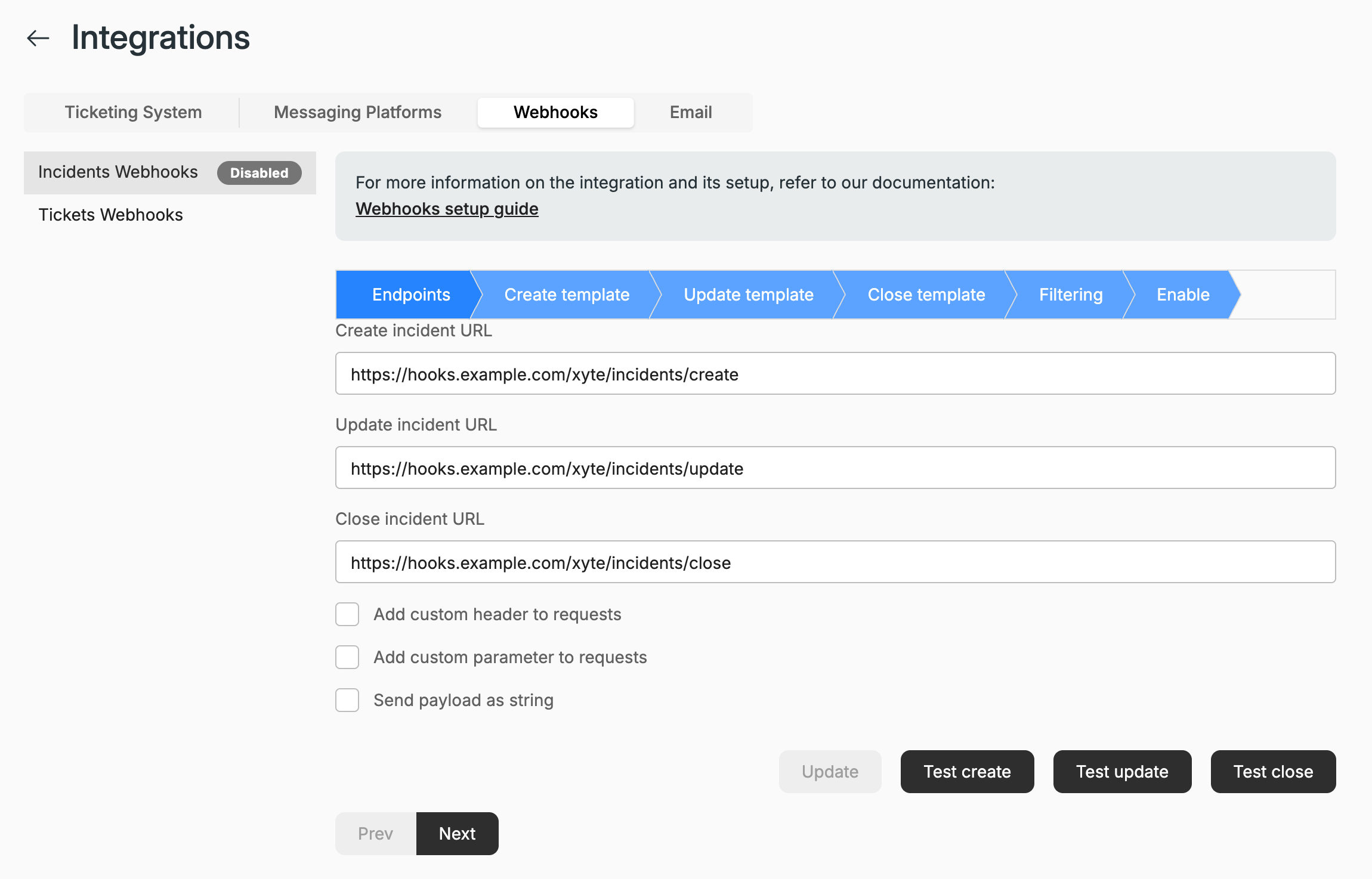
Endpoints
- Enter the URLs that should receive each event. You can fill in only the ones you need:
- Create incident URL
- Update incident URL
- Close incident URL
- Optional settings:
- Add custom header to requests — adds a Field name (for example
Authentication) and Field value sent as a header on every request. The value is masked as you type. - Add custom parameter to requests — adds a Field name (for example
Client ID) and Field value that are added to the default payload. The value is masked as you type. The parameter is not added when you use a body template. - Send payload as string — sends the payload as a string instead of a JSON object. This applies to body templates too.
- Add custom header to requests — adds a Field name (for example
- Click Update to save.
- Use Test create, Test update and Test close to send a sample request to each URL. If an event has a saved body template, its test sends that template filled with sample values; otherwise it sends the default payload.
Body templates (optional)
By default, every request carries Xyte's default payload. The Create template, Update template and Close template steps let you replace that payload with your own JSON body for each event, so the receiving system gets exactly the fields and field names it expects.
A template is JSON with {key} placeholders. When Xyte sends the request, each placeholder is replaced with that incident's value. Each event has its own template, and an event whose template is blank keeps sending the default payload.
Write a template
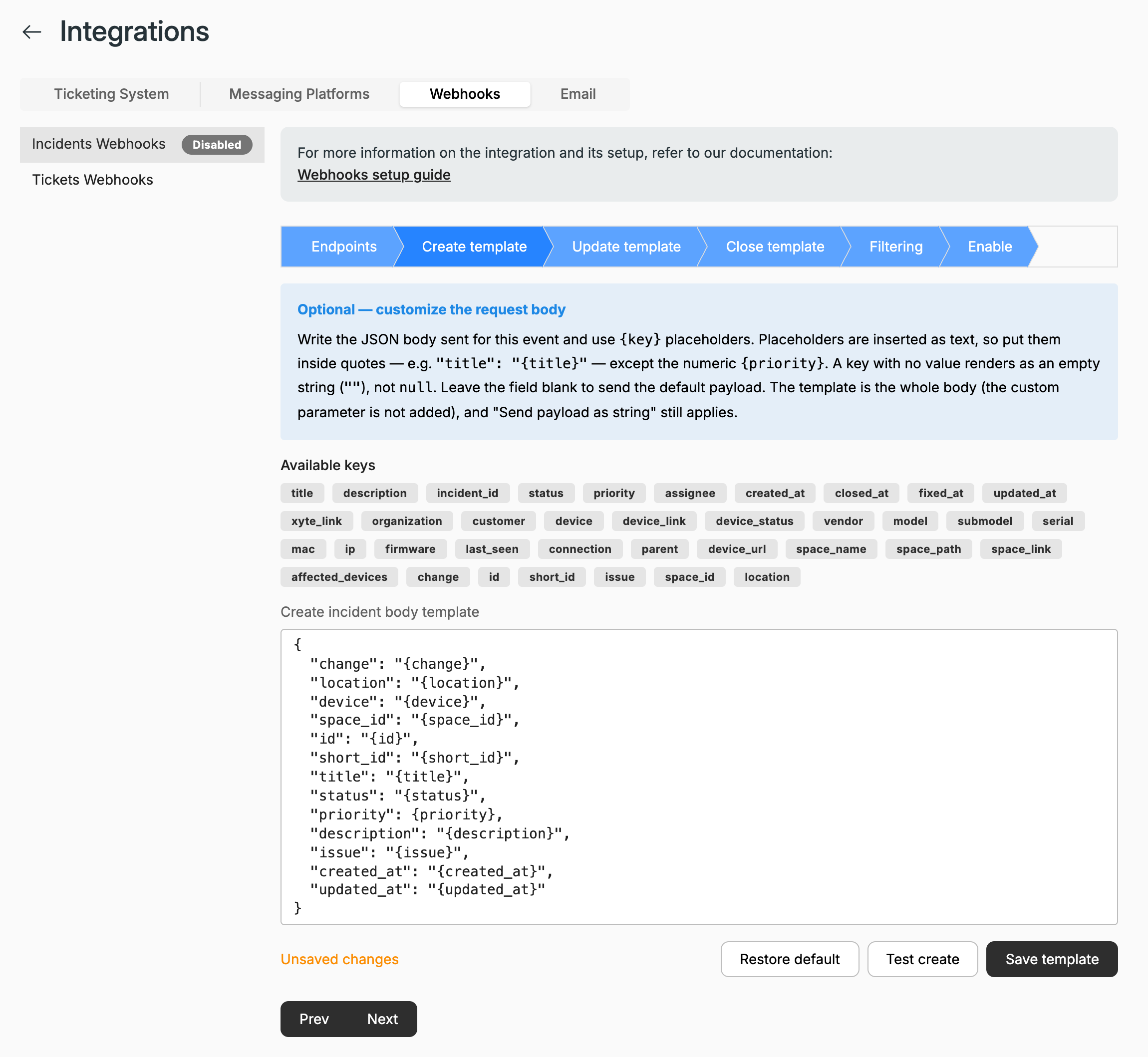
Each template step has the same layout: an explanation of how templates work, the Available keys list, and the template field (Create incident body template, Update incident body template or Close incident body template). When the field is blank, it shows the default template as greyed-out placeholder text.
- Open the template step for the event, for example Create template.
- Click Start from default to fill the field with the default template, then edit it. Or type your own JSON from scratch.
- Click Test create (or Test update / Test close) to send the current text, filled with sample values, to that event's saved URL. You don't need to save first; a blank field sends the default payload. The button is disabled until the event has a URL saved in Endpoints; hovering over it shows Save a create incident URL in Endpoints to test.
- Click Save template. While the field differs from the saved template, the step shows Unsaved changes.
To go back to the default payload, click Restore default (shown whenever the field has text). It clears the field; click Save template to apply it.
Default template
Start from default fills in a template that reproduces the default payload. It is the same for all three events; {change} becomes create, update or close.
{
  "change": "{change}",
  "location": "{location}",
  "device": "{device}",
  "space_id": "{space_id}",
  "id": "{id}",
  "short_id": "{short_id}",
  "title": "{title}",
  "status": "{status}",
  "priority": {priority},
  "description": "{description}",
  "issue": "{issue}",
  "created_at": "{created_at}",
  "updated_at": "{updated_at}"
}
It differs from the default payload in two ways:
- A key with no value is sent as an empty string (
""). The default payload sendsnullinstead, or leavesspace_idout when the space has no ID. - The custom parameter from Endpoints is not added.
For example, a template that maps incidents to a receiving system's own field names:
{
  "event": "{change}",
  "ref": "{incident_id}",
  "summary": "{title}",
  "severity": {priority},
  "site": "{space_path}",
  "asset": "{device}",
  "serial": "{serial}",
  "link": "{xyte_link}"
}
How placeholders behave
- Put placeholders inside quotes. A value is inserted as JSON-escaped text, so write
"title": "{title}". Quotes, backslashes and line breaks in the value are escaped for you, so they can't break the JSON (see the example below this list). {priority}is the exception. It is a number from 1 (Critical) to 5 (Planning) and can be written without quotes, as in the default template. If you quote it, it is sent as a string, for example"3".- A key with no value for that incident becomes an empty string (
""), notnull. - An unknown key (a typo such as
{titel}) is sent as written, so the mistake is visible in the receiving system instead of disappearing. - Only letters, digits and underscores are recognized inside the braces:
{space_name}works,{space name}is left as plain text. - The template is the whole body. The custom parameter is not added. The custom header is still sent, and Send payload as string still applies.
- Xyte sends the body as compact JSON, so your line breaks and indentation are not kept. Key order is kept.
For example, with the template "title": "{title}", an incident titled Say "hi" followed by a line break and now is sent as:
{"title":"Say \"hi\"\nnow"}Validation
When you click Save template, Xyte fills the template with sample values and checks the result. If the check fails, the template isn't saved and the error appears under the field:
- create body template is not valid JSON (or
update/close): the template isn't valid JSON once the placeholders are filled. Common causes are a missing comma or brace, a text placeholder without quotes, comments (//or/* */), andNaN,Infinityor numbers too large to send. - create body template must be a JSON object: the body must be an object, wrapped in braces. A top-level array, string or number is rejected.
- create body template is too large (max 64 KB): the template is over 64 KB.
Test runs the same check, so these errors also appear in the Test connection error message.
If a saved template still produces invalid JSON for a particular incident, Xyte sends that request with the default payload instead of dropping it.
Available keys
The Available keys list in each template step shows every key you can use.
| Placeholder | Description | Example |
|---|---|---|
{title} | Incident title | Camera offline |
{description} | Incident description | Device stopped responding |
{incident_id} | Short incident ID (same as {short_id}) | 4821 |
{status} | Incident status: active, fixed or closed | active |
{priority} | Incident priority as a number: 1 (Critical), 2 (High), 3 (Moderate), 4 (Low), 5 (Planning) | 3 |
{assignee} | Assigned user (blank when unassigned) | Jane Doe |
{created_at} | When the incident was created | 2026-09-10T08:14:02.123Z |
{closed_at} | When the incident was closed | 2026-09-10T10:02:41Z |
{fixed_at} | When the incident was marked fixed | 2026-09-10T09:55:12Z |
{updated_at} | When the incident was last updated | 2026-09-10T09:20:00.000Z |
{xyte_link} | Link to the incident in Xyte | https://app.xyte.io/incident/… |
{organization} | Organization name | Acme Corp |
{customer} | Customer (top-level space) name | Acme Retail |
{device} | Device name. For a room incident, the device the incident was raised on | Front Lobby Camera |
{device_link} | Link to the device in Xyte | https://app.xyte.io/devices?deviceId=… |
{device_status} | Device status | offline |
{vendor} | Device vendor | Axis |
{model} | Device model (Multiple devices for a room incident) | P3245 |
{submodel} | Device sub-model | P3245-LVE |
{serial} | Device serial number | ACCC8E1F2A3B |
{mac} | Device MAC address | AC:CC:8E:1F:2A:3B |
{ip} | Device IP address | 10.20.30.41 |
{firmware} | Device firmware version | 11.9.62 |
{last_seen} | When the device was last seen (blank for a room incident) | 2026-09-10T08:12:55Z |
{connection} | How the device connects to Xyte | Edge / Zabbix proxy |
{parent} | Parent device name | Floor 3 Switch |
{device_url} | The device's own web interface, when known | https://10.20.30.41 |
{space_name} | Space name (the room itself) | Room 301 |
{space_path} | Full space path of the device | HQ / Floor 3 / Room 301 |
{space_link} | Link to the space in Xyte | https://app.xyte.io/overview/… |
{affected_devices} | Names of the affected devices, comma-separated (room incidents) | Camera 1, Display 2 |
{change} | The event that triggered the request | create |
{id} | Incident's full unique ID | 3f6c2a9e-… |
{short_id} | Short incident ID | 4821 |
{issue} | Incident issue type | offline |
{space_id} | Your custom ID for the device's space (blank if none is set) | SPACE-001 |
{location} | Full space path of the device (same as {space_path}) | HQ / Floor 3 / Room 301 |
Filter incidents by priority (optional)
In the Filtering step, choose a Minimum incident priority to report and click Save filtering. Only incidents at or above the selected priority are sent. Incidents below it are skipped for their whole lifecycle, even if their priority is raised later; an incident that was already sent keeps updating even if its priority is lowered.
Enable, disable or remove
The Enable step has one button that shows the current state: Activate turns the webhook on, Disable turns it off. Remove deletes the Incidents Webhooks settings after you confirm.
Changing the URLs, custom header, custom parameter or Send payload as string in Endpoints turns the webhook back on. Saving a template or a filter doesn't change whether it is on or off.
When a request fails
If the receiving URL rejects a request, Incidents Webhooks shows the error below the wizard (for example Error with create callback: Not Found), Failing since with the date it started, and Show full error to see the full response. The Endpoints step also shows the error under the URL that failed, for example Error using Create URL : …. A notification email is also sent to your organization's Admin Contact Email.
Incidents Webhooks depend on your plan. If they aren't included, the tab shows Stay Ahead of Incidents with an Enable Webhooks button, above a read-only preview of the wizard.
Set up Tickets Webhooks
Go to Settings → Integrations → Webhooks → Tickets Webhooks. Each event has its own webhook:
- Opened Ticket Notifications
- Updated Ticket Notifications
- Closed Ticket Notifications
- New Chat Message Notifications
For each event you want:
- Enter the Webhook URL and a Request secret (both required).
- Click Test to send a sample request.
- Click Connect. A connected event shows Connected, with Update and Disconnect.
Sample payloads
Opened Ticket Notifications
{
  "event_type": "ticket_opened",
  "ticket_id": "TICKET_ID",
  "organization_display_name": "ORGANIZATION_DISPLAY_NAME",
  "partner_display_name": "PARTNER_DISPLAY_NAME",
  "user_email": "USER_EMAIL",
  "user_name": "USER_NAME",
  "user_id": "USER_ID",
  "status": "STATUS",
  "title": "TITLE",
  "description": "DESCRIPTION",
  "space_name": "SPACE_NAME",
  "device_id": "DEVICE_ID",
  "device_name": "DEVICE_NAME",
  "device_sn": "DEVICE_SN",
  "device_mac": "DEVICE_MAC",
  "device_cloud_id": "DEVICE_CLOUD_ID",
  "device_model_name": "DEVICE_MODEL_NAME",
  "device_sub_model": "DEVICE_SUB_MODEL",
  "device_created_at": "DEVICE_CREATED_AT"
}
Updated Ticket Notifications
{
  "event_type": "ticket_updated",
  "ticket_id": "TICKET_ID",
  "organization_display_name": "ORGANIZATION_DISPLAY_NAME",
  "partner_display_name": "PARTNER_DISPLAY_NAME",
  "user_email": "USER_EMAIL",
  "user_name": "USER_NAME",
  "user_id": "USER_ID",
  "status": "STATUS",
  "title": "TITLE",
  "description": "DESCRIPTION",
  "device_id": "DEVICE_ID",
  "device_name": "DEVICE_NAME",
  "device_model_name": "DEVICE_MODEL_NAME",
  "device_sub_model": "DEVICE_SUB_MODEL",
  "device_created_at": "DEVICE_CREATED_AT"
}
Closed Ticket Notifications
{
  "event_type": "ticket_closed",
  "ticket_id": "TICKET_ID"
}
New Chat Message Notifications
{
  "event_type": "new_chat_message",
  "ticket_id": "TICKET_ID",
  "user_name": "USER_NAME",
  "text": "TEXT"
}
Having trouble with Webhooks? See the Webhooks troubleshooting guide.
Updated 4 days ago