
Replace a device
How to replace a device.
In some cases, devices can be replaced without losing the device’s history and data in the cloud. The replacement flow happens when a broken device is replaced by another device of the exact same model or when an existing device is factory reset and loses all its settings.
Replace a device that has undergone a factory reset
When a device is factory reset it loses its credentials, and when it tries to register again the platform rejects it, because a device with the same identity (cloud ID, or MAC address and serial number, depending on the model) is already registered. Instead of silently failing, the platform flags the existing device so an administrator can decide what to do.
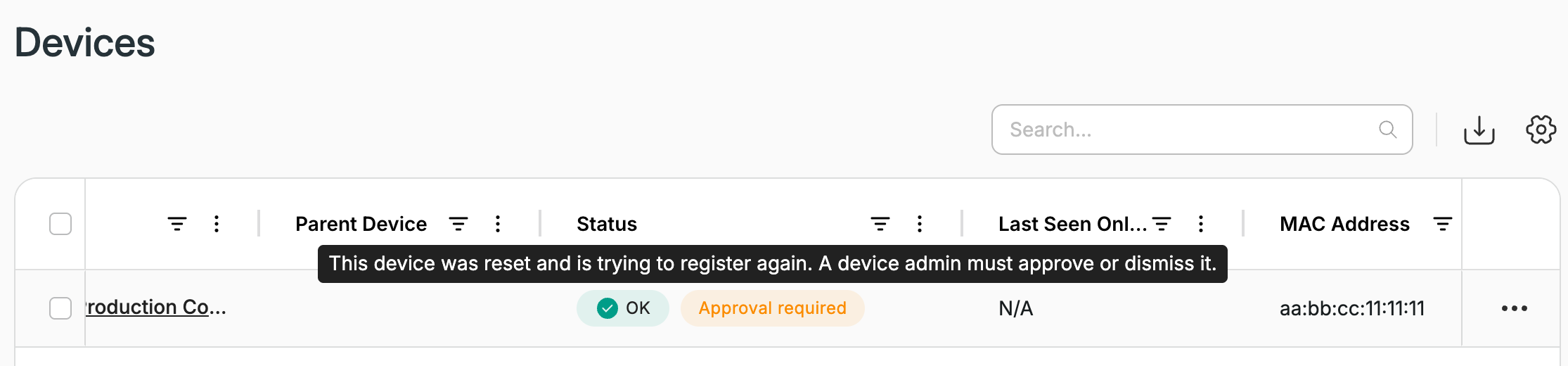
On the Devices screen, a flagged device shows an orange Approval required badge next to its status in the Status column. Everyone who can see the device sees the badge. Hovering over it shows admins: "This device was reset and is trying to register again. Open it to approve or dismiss." Users with View or Edit access see: "This device was reset and is trying to register again. A device admin must approve or dismiss it."
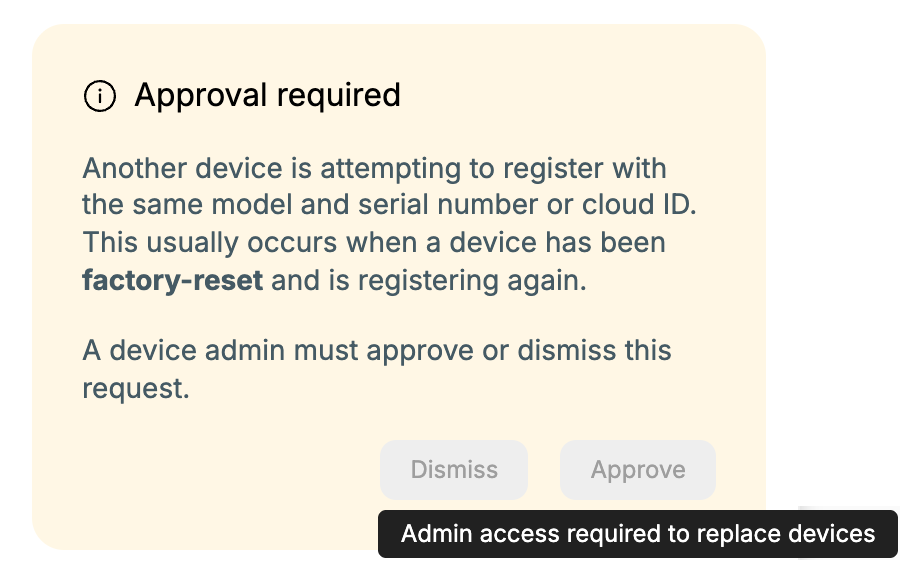
Open the device, and its details screen shows an Approval required message:
- Click Approve if this is the same physical device. The next time it registers, it reconnects to the existing device record and can re-authenticate with the platform.
- Click Dismiss if you do not recognize the request, and contact support to prevent unauthorized access. The device stays rejected. If it tries to register again, the Approval required badge comes back.
Only users with Admin access to the device can approve or dismiss. For other users the message ends with "A device admin must approve or dismiss this request.", with Approve and Dismiss disabled; hovering over them shows Admin access required to replace devices. Ask a device admin to act on it.
Don't delete a reset device and claim it again. Deleting removes the device record, so the device comes back as a new device without its history or configuration. Use Approve instead.
If the device stays in Pending replacement. After you click Approve, the device shows a Pending replacement banner until it registers again. Some devices reconnect with their existing connection instead, so the replacement never completes and the banner stays, naming the device's own serial number, even while the device is online. If the device was not swapped, click Cancel replacement on the banner (admins only; other users see the banner with the button disabled). The device keeps its licenses, history and configuration.
Replace a device with a different one
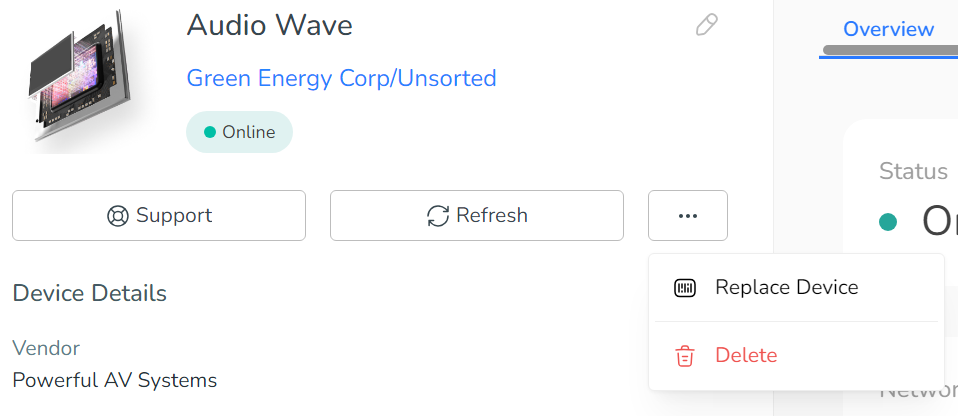
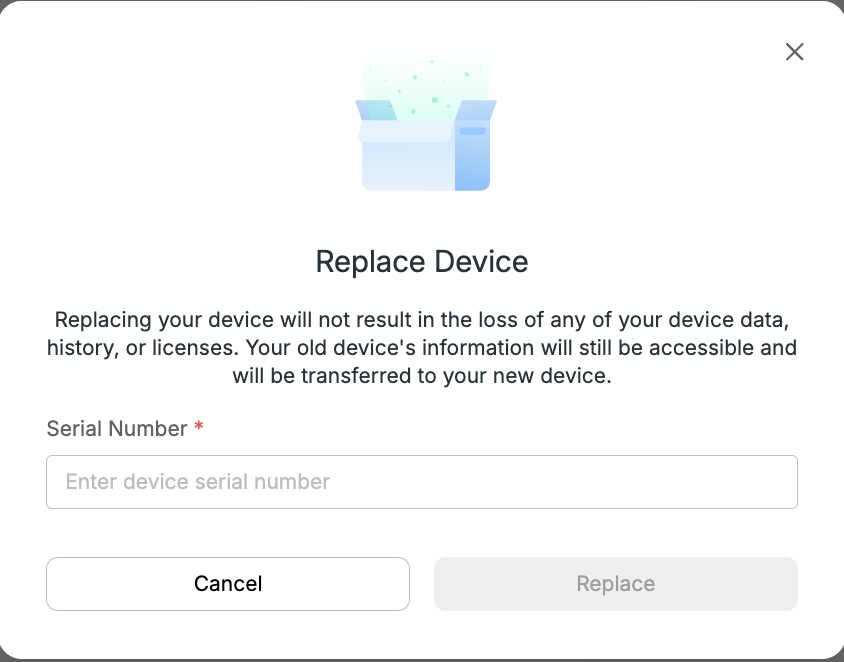
You can replace a device with another one of the same model. On the device’s details screen, click Manage and select Replace device. You’ll need to provide either the serial number or the cloud ID of the new device — pick whichever identifier you have using the selector in the dialog. For device models that authenticate by cloud ID (for example, devices registered through a cloud agent), use the cloud ID.
Where Replace device isn't available
- Edge devices are identified by their network address, not a serial number or cloud ID. To point one at a different unit, use Manage → Edit device IP / hostname.
- Cloud Connector devices follow the manufacturer's cloud. Swap the unit there: the connector imports the new unit as a new device on its next sync and removes the old one after the grace period. See how connectors sync.
- Devices under a parent device can't be replaced.
Once the new device connects to the internet (Registered but not claimed) and contacts the central server, it will replace the old device in the portal. The device's history and configuration are kept, but when you start the replacement most of its licenses are revoked — they stay with the device and re-activate once the new device connects (see What approving a replacement changes below). After the replacement, the old device will no longer be able to contact the cloud.
To verify that the replacement was successful, please check whether the serial number (or cloud ID) has been updated.
The identifier must match exactlyThe serial number / cloud ID you enter is matched against the value the replacement device reports when it registers. Surrounding whitespace is ignored, but the match is case-sensitive — enter the identifier exactly as printed on the device or shown by its agent.
Replacing with a device that is already registeredThe replacement completes when the new device registers with the cloud. If the replacement device has already been registered in the system (it appears in the portal or in the partner's device list), the pending replacement will not trigger. To replace with an already-registered device: set the replacement serial number / cloud ID to the new device's identifier as usual, then delete the new device from the system. The next time it connects it will re-register and the regular replacement flow will complete.
What approving a replacement changes
Approving a factory-reset device, or starting a replacement with Replace device, keeps the device's history and configuration, but also:
- Licenses: most licenses on the device are revoked but stay with the device, and are re-activated when it reconnects. They don't return to your pool of assignable licenses. Platform licenses that are in use stay active on the device.
- Commands: active commands on the device are aborted.
- Incidents: the device's open incidents are closed.
Updated 3 days ago