
Users & Groups
Manage users, groups and permissions.
The Users & Groups page (Settings → Users & Groups) is where you manage who can access your account and control what each person can do through group-based permissions.
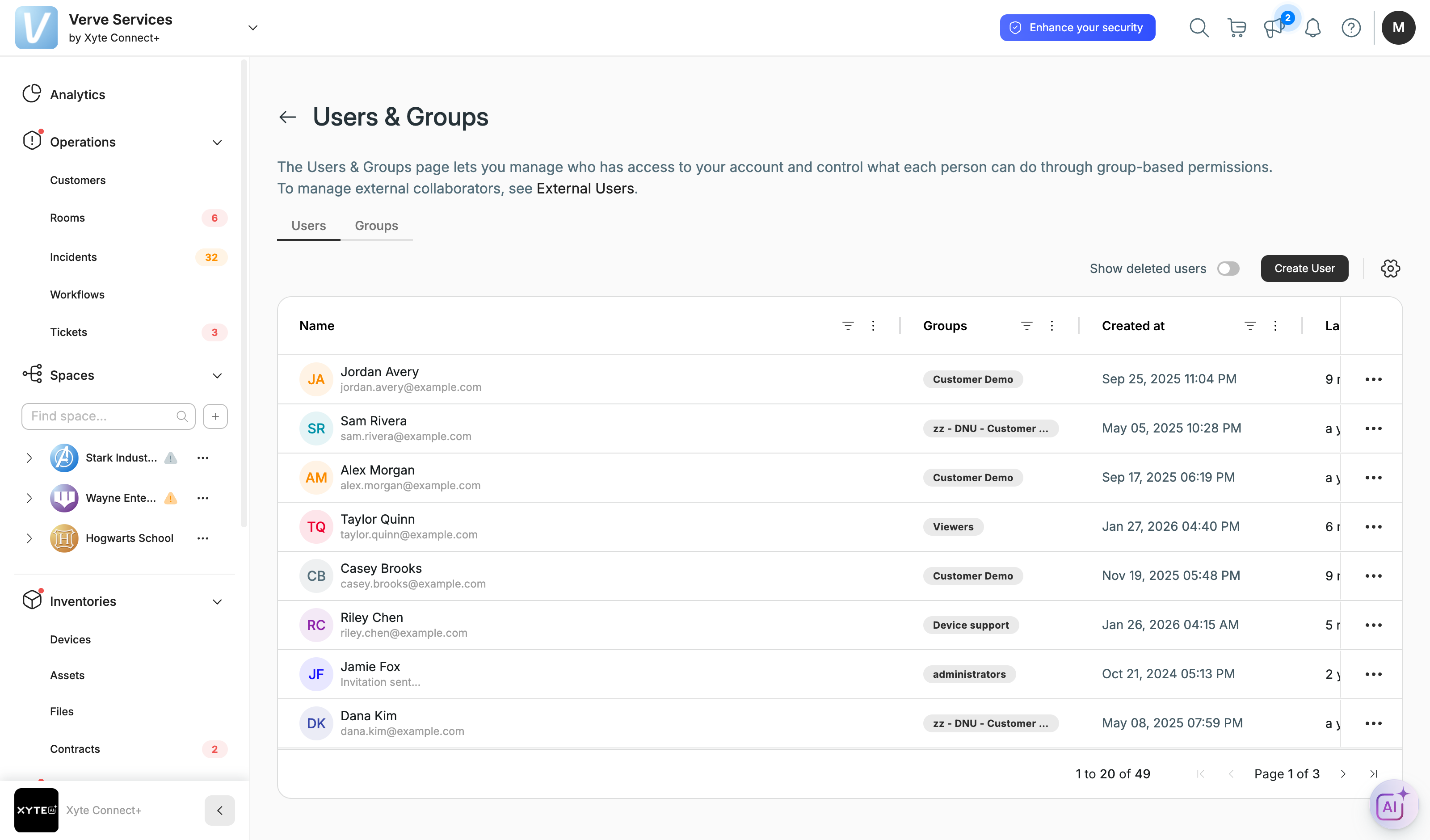
Users
The Users tab lists everyone with access to your tenant, with a column for each of:
- Name — the user's name and email address.
- Groups — the groups the user is assigned to.
- Date — when the user was created in the portal.
- Last seen — when the user was last seen in the portal.
- Logins count — how many times the user has logged in.
- Last login / Last login IP — when the user last logged in, and from which IP address.
Toggle Show deleted users (top right) to include deleted users in the list. External support users are marked with an External User tag next to their name.
To add someone:
- Click Create User.
- Provide the user's work email and name, and choose the groups they should belong to.
- Click Create — the user receives an email with a registration link (valid for 14 days).
See Add a user to a tenant for the full flow. Adding a user grants access at the tenant level; you then scope what they can see by placing them in groups and granting those groups access to specific customers, spaces or rooms.
One email, more than one portalSign-in is scoped to the portal you log in on. A user of a manufacturer's own branded portal (for example
yourbrand.on-xyte.com) and a user of a Connect+ account atapp.xyte.ioare separate accounts, so the same email address can be used for both — each with its own password and two-factor setup, and a password reset on one does not affect the other. Within a single account, an email address can belong to only one user.Partner portal users are the exception: any user of a manufacturer's own portal (not only admins) is managed centrally, so that email is one account across Xyte's shared cloud rather than two separate ones.
Groups
The Groups tab lets you organize users into groups and grant access to them centrally. Three groups are created automatically for every tenant:
- administrators — full access to every space, device and setting in the tenant.
- Viewers — read-only access across the tenant.
- Device support — created with Edit on the root space, which is inherited by every space and device beneath it.
Creating a group does not grant accessA group on its own is only a list of people. Members get access when the group is added to a space and given an access level there (Overview → space → Settings → Access → Groups). A newly created group grants nothing until you do that.
A user's effective access is the highest level they hold from anywhere — a direct grant on a space, any group with access to it, or a group with access to a space above it. Adding someone to a view-only group therefore does not remove access they already have from another group.
- Assign permissions to an internal user
- Assign permissions to an external user
- Add a group to a tenant
- Grant a group access to a space
To manage external collaborators (support partners), see External Support Access. For how tenant-wide and space-level access work, see Access Management.
Running into user or permission issues? See Users & Groups — Troubleshooting.
Updated about 2 months ago