
Keyboard shortcuts
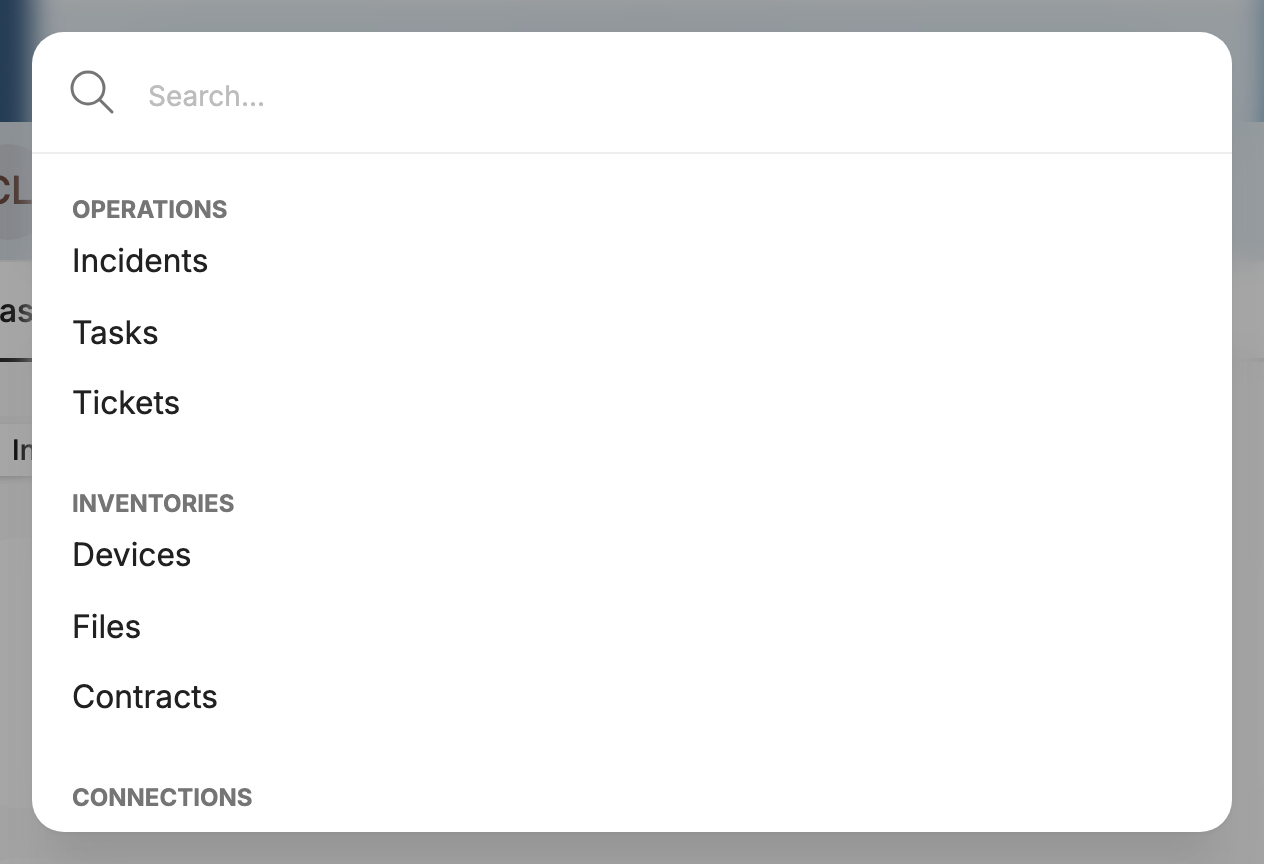
Find any page, space or action in the portal without leaving the keyboard. From anywhere in the portal, press:
Then start typing and press Enter to go there. You can also click the 🔍 search icon in the top bar.
Keyboard shortcuts
| Action | Mac | Windows |
|---|---|---|
| Open quick search | ⌘ K | Ctrl + K |
| Switch to another tenant | ⌘ ⌥ T | Ctrl + Alt + T |
| Move through the results | ↑ / ↓ | ↑ / ↓ |
| Open the selected result | Enter | Enter |
| Close quick search | Esc | Esc |
| Save a note (in a space's Notes tab) | ⌘ Enter | Ctrl + Enter |
What you can do from quick search
Type a few letters to filter. Results are grouped, and matching text is highlighted.
| Group | What you'll find |
|---|---|
| Pages | Analytics, Customers, Rooms, Incidents, Workflows, Tasks, Tickets, Devices, Assets, Files, Contracts, Cloud Connectors, Edges, Integrations, Store, Purchases and Settings |
| Settings | API Keys, Audit Logs, Connected apps, Contacts, Credit cards, External Support Access, General, Integrations, Notifications, Reports, and Users & Groups |
| Spaces | Every space you can see. Search by name or by any part of its path |
| Create | Add device, Add asset, Connect edge and Add connector, which open the matching setup flow directly |
| Tenant | Switch Tenant and Reset home page |
| Account | Personal settings, Help, Terms of service, Privacy Policy and Sign out |
Jump to a space
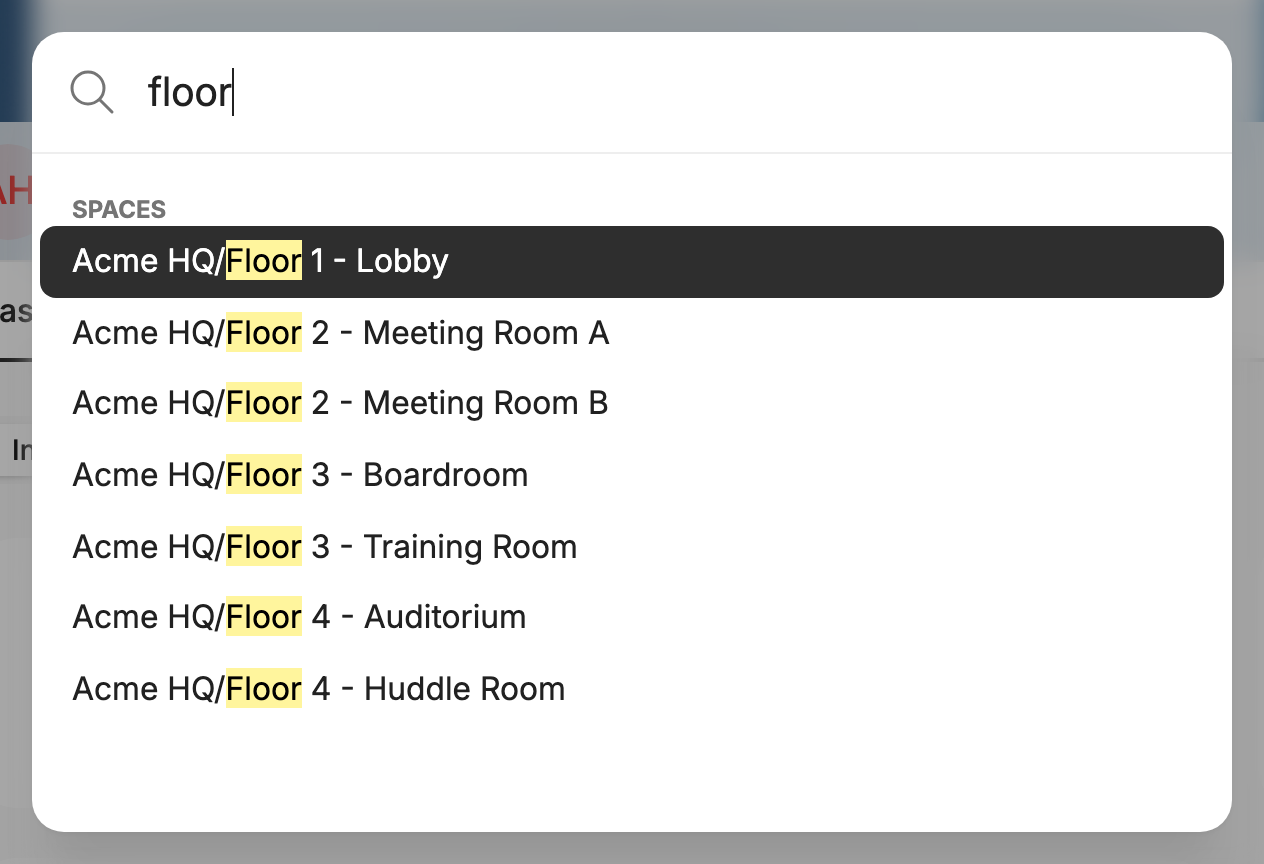
Type part of a space's name, such as a floor or room, to open that space directly.
Start a setup flow
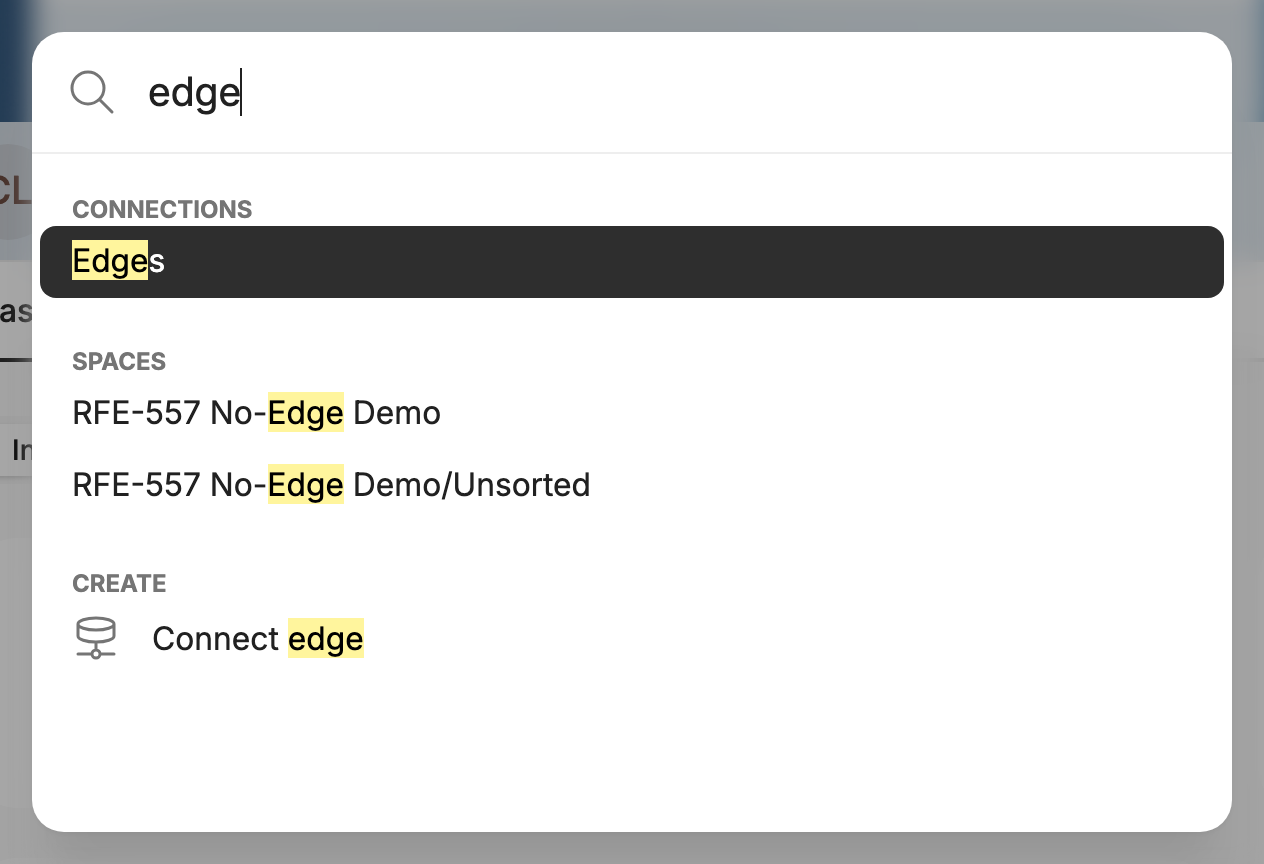
Quick search also finds actions. For example, type edge to go to the Edges page or start Connect edge.
Only what you can accessQuick search lists only the pages, spaces and actions your permissions allow. Some items depend on the features enabled for your account, and Switch Tenant appears only when you have access to more than one tenant. Don't see something you expect? Contact [email protected].
Updated 20 days ago