
WebEx Teams
Set up WebEx Teams webhook recipients for incident notifications.
Send Xyte incident notifications to a Webex (WebEx Teams) space using an incoming webhook — and, optionally, customize the message.
What you'll need
- A Webex Incoming Webhook URL. Create one with Cisco's Incoming Webhooks app, choose the target space, and copy the generated URL.
Step 1 — Add the webhook URL
- In Webex, add the Incoming Webhooks app, select the space that should receive notifications, and copy the Webhook URL.
- In Xyte, go to Connections → Integrations (or Settings → Integrations → Messaging Platforms) and choose WebEx Teams.
- Paste the Webhook URL and click Update.
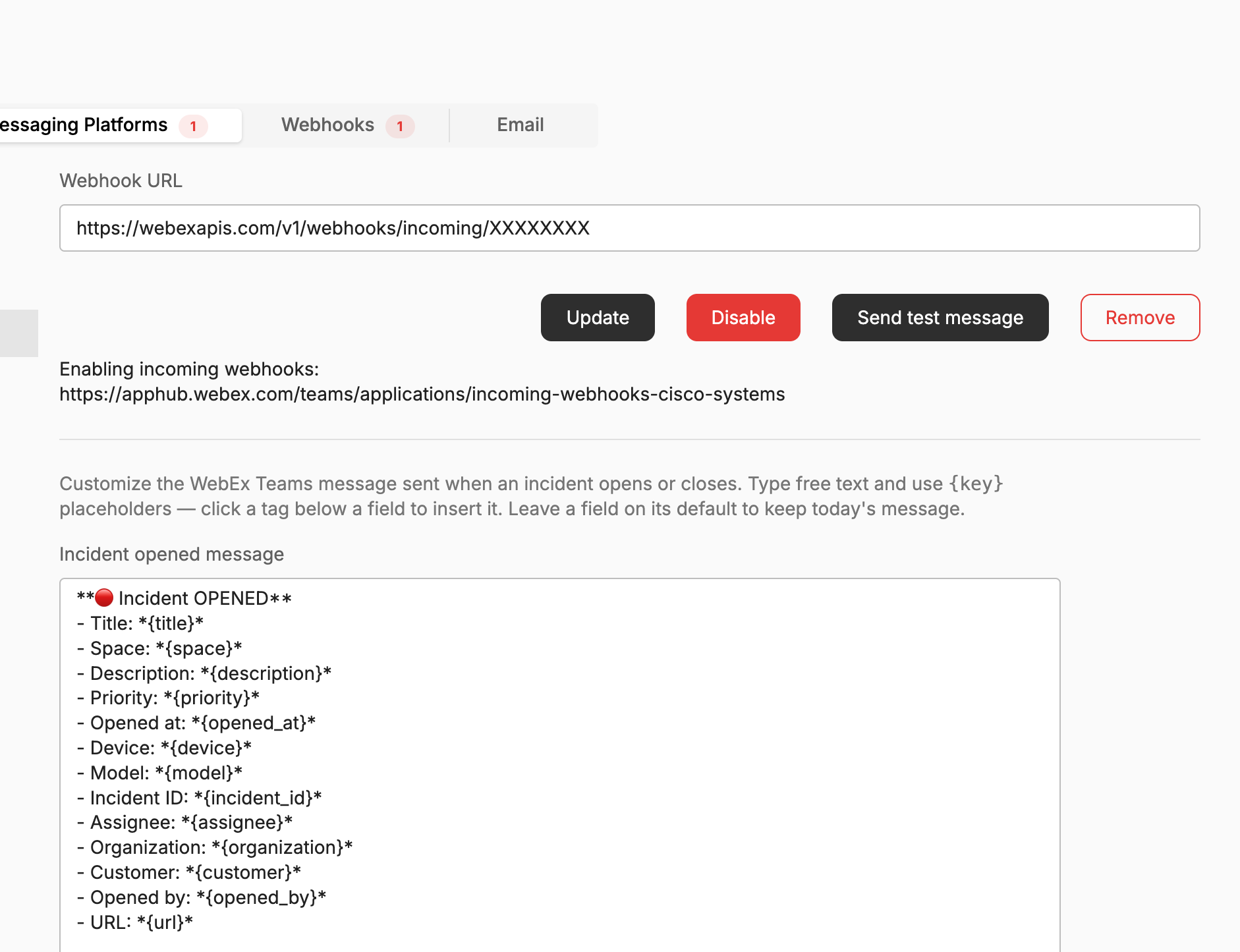
Step 2 — Test and enable
Click Send test message to confirm delivery to your Webex space. Use Disable or Remove to turn the integration off or remove it later.
To limit which incidents reach WebEx at all, use the Filter incidents by priority section at the bottom of the same page — see the Filter by priority tab. To control which incidents each space sends, use that space's Routing settings; a space with its own WebEx webhook overrides the one set here.
Customize the message (optional)
You control exactly what the WebEx messages say. The message editor sits directly below the Webhook URL field. There are two independent templates:
- Incident opened message — sent when an incident is raised.
- Incident closed message — sent when it is resolved.
WebEx receives an opening and a closing message only. Threaded follow-ups while an incident is still open are Slack-only — a WebEx incoming webhook gives Xyte no message to reply to.
Each is free text with {placeholder} tokens that are replaced with the incident's values when the message is sent. Both fields start pre-filled with the default template — the standard message with every field, ending with a link back to this settings page. Edit the text and click Save templates, or click Reset to default to restore the original.
- If every placeholder on a line is empty for a given incident, the whole line is dropped from the message — so a template laid out one field per line never shows empty rows.
- An unrecognized
{token}(a typo, for example) is sent as written, so the mistake is visible in the message. - A very long value (a 1000-character description, say) is truncated with an ellipsis to stay inside the platform's message limit.
- WebEx markdown works: wrap text in
**double asterisks**for bold, and use[Open in Xyte]({url})for a labeled link. - Click any placeholder chip below a field to insert it at the end of that template.
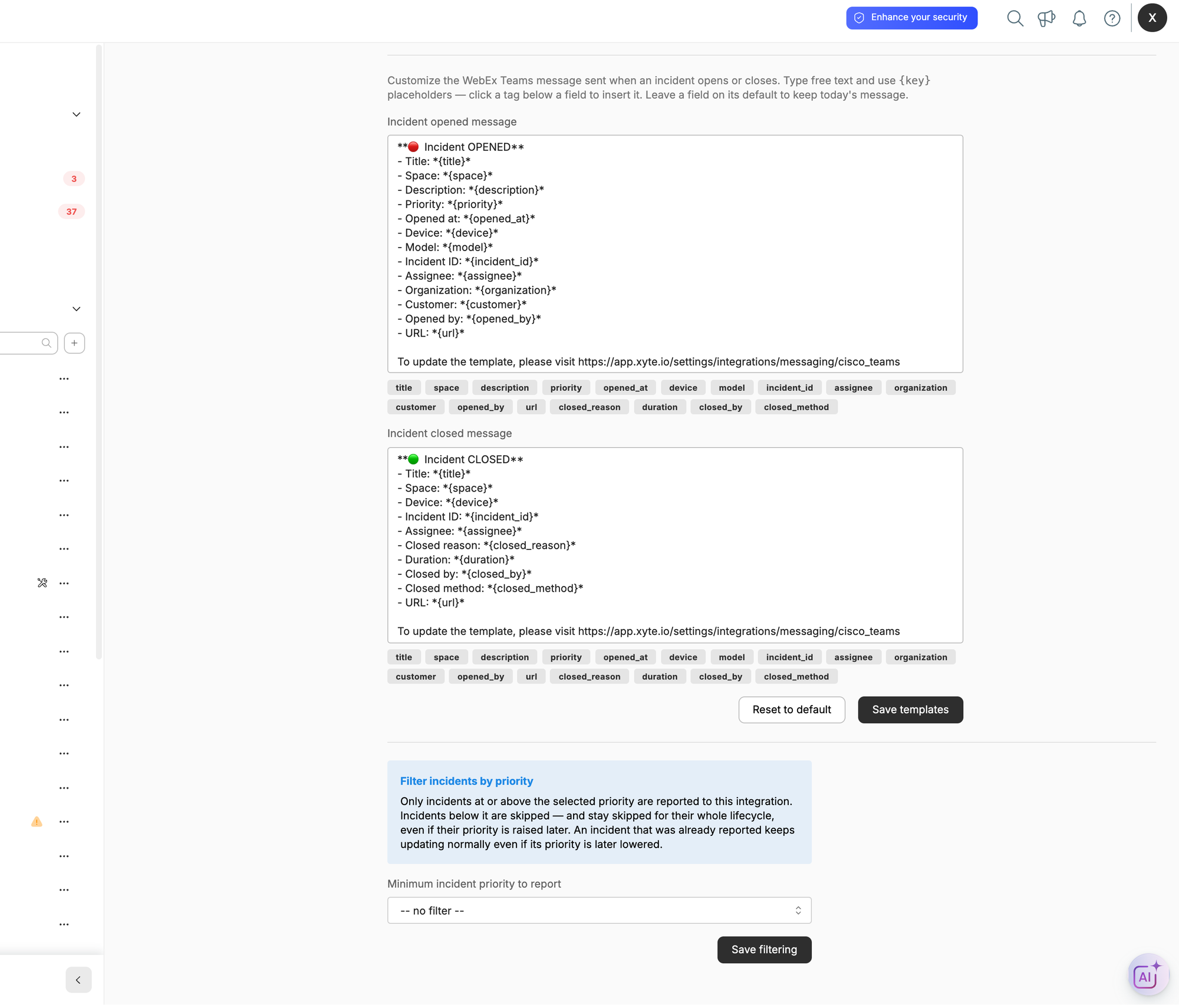
Available placeholders
| Placeholder | Description | Example | Opened | Closed |
|---|---|---|---|---|
{title} | Incident title | Camera offline | ✅ | ✅ |
{space} | Full space path of the device | HQ / Floor 3 / Room 301 | ✅ | ✅ |
{description} | Incident description | Device stopped responding | ✅ | |
{priority} | Priority — Critical, High, Moderate, Low, or Planning | High | ✅ | |
{opened_at} | When the incident opened (device time zone) | 05/06/2026 16:26 UTC | ✅ | |
{device} | Device name | Front Lobby Camera | ✅ | ✅ |
{model} | Vendor / model | Axis / P3245 | ✅ | |
{incident_id} | Short incident ID | 4821 | ✅ | ✅ |
{assignee} | Assigned user | Jane Doe | ✅ | ✅ |
{organization} | Organization name | Acme Corp | ✅ | |
{customer} | Customer (top-level space) name | Acme Retail | ✅ | |
{opened_by} | Who or what opened the incident | Monitoring | ✅ | |
{url} | Link to the incident in Xyte | https://app.xyte.io/incident/… | ✅ | ✅ |
{closed_reason} | Why the incident closed | Device back online | ✅ | |
{duration} | How long the incident was open | about 2 hours | ✅ | |
{closed_by} | Who or what closed the incident | System | ✅ | |
{closed_method} | How it was closed (for example, manually or automatically) | automatically | ✅ |
A placeholder used outside its scope (for example {closed_reason} in the opened message) simply renders blank.
Example
Opened-message template:
**🔴 {title}**
Priority **{priority}** at {space}
Device: {device} ({model})
[Open in Xyte]({url})
Posts to WebEx as:
🔴 Camera offline
Priority High at HQ / Floor 3 / Room 301
Device: Front Lobby Camera (Axis / P3245)
Open in Xyte
Report only the incidents that matter
The Filter incidents by priority section at the bottom of the WebEx Teams settings page limits which incidents reach WebEx at all. Pick a value under Minimum incident priority to report and click Save filtering:
| Option | Reported to WebEx |
|---|---|
| No filter — send everything | Every incident (default) |
| Critical and above | Critical only |
| High and above | Critical, High |
| Moderate and above | Critical, High, Moderate |
| Low and above | Critical, High, Moderate, Low |
| Planning and above | Every incident |
How it behaves:
- An incident below the threshold is skipped, and stays skipped for its whole lifecycle — even if someone raises its priority later, and even for its closing message.
- An incident that was already reported keeps updating normally, even if its priority is later lowered.
- The filter is per integration, so WebEx can be noisier or quieter than your other recipients.
- You can also set this for all your integrations at once from the Integrations list.
Having trouble with the WebEx Teams integration? See the WebEx Teams troubleshooting guide.
Updated 27 days ago