
Freshservice
Fresh Service integration details under the Integrations overview.
The Freshservice integration creates and syncs service requests from Xyte device incidents in your Freshservice instance.
Service Request basedThis is the Service Request based integration. For an Incident based integration, contact [email protected].
Before you start
You'll need:
- Your Freshservice Instance URL — for example,
https://acme.freshservice.com. - A Freshservice API key (recommended), or an agent username and password.
- To find the API key: in Freshservice, open Profile Settings → Your API Key.
Use a dedicated agentConnect with a dedicated, least-privilege agent so activity is auditable and access can be revoked without affecting anyone else.
Share the questionnaire firstSend the Freshservice questionnaire to your Freshservice admin before you start. It lists every answer you need to complete this setup yourself.
Step 1 — Connection
- Go to Connections → Integrations (or Settings → Integrations → Ticketing System) and choose Fresh Service.
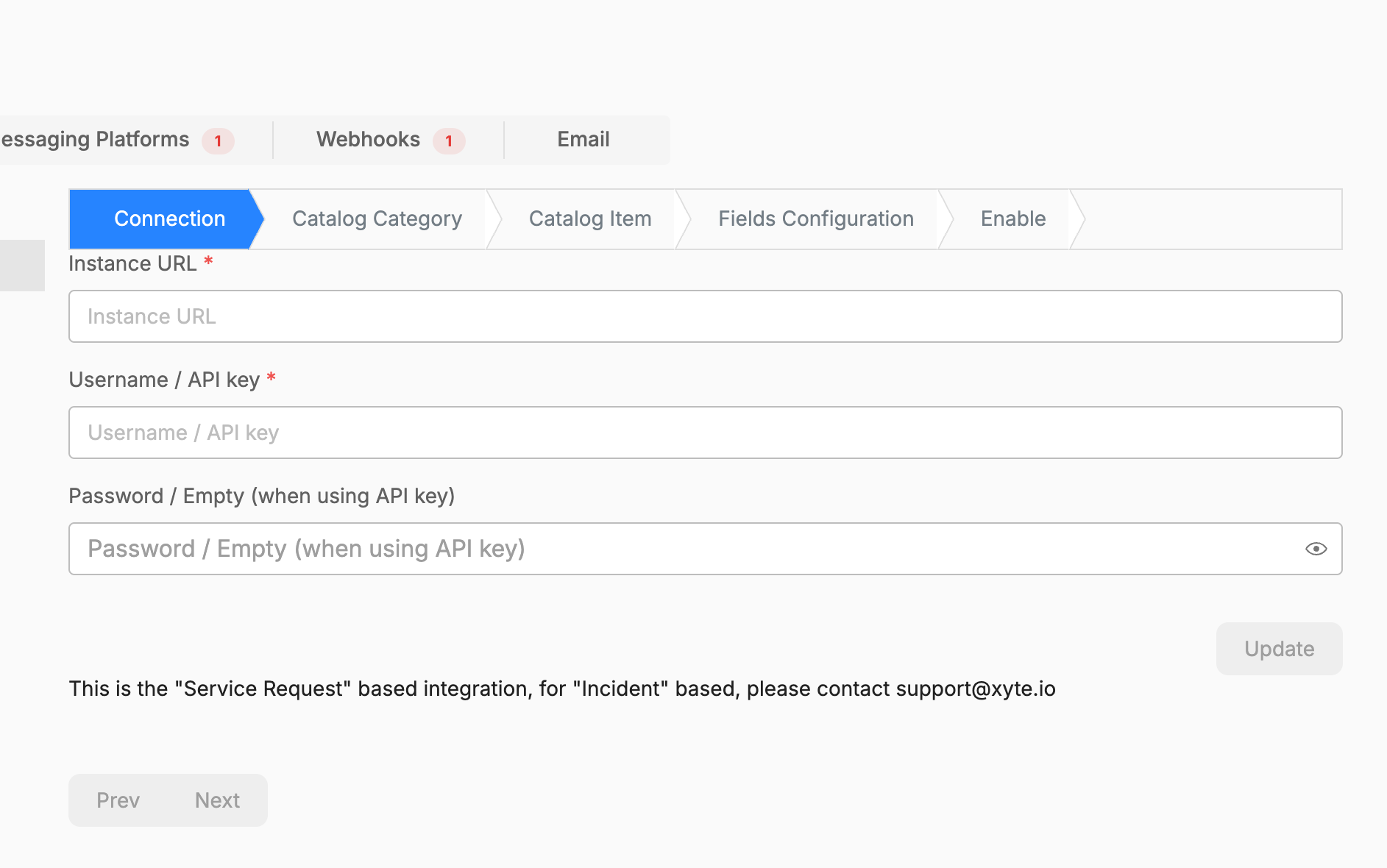
- On the Connection stage, enter:
- Instance URL — your Freshservice URL.
- Username / API key — paste your API key here (or your agent username).
- Password / Empty (when using API key) — leave this empty when using an API key; enter a password only if you're authenticating with a username and password.
- Click Update, then Next.
Step 2 — Catalog Category
Select the Freshservice catalog category that Xyte's service requests should be created under, then click Update, then Next.
Step 3 — Catalog Item
Select the catalog item to use for the requests Xyte creates, then click Update, then Next.
Step 4 — Fields Configuration
Map Xyte incident details to the Freshservice request fields, then click Update, then Next.
Step 5 — Enable
Turn the integration on. Once enabled, new Xyte device incidents create matching Freshservice service requests, which are resolved when the incident is resolved. Every 15 minutes Xyte checks the requests and syncs status and priority changes back.
Having trouble with the Fresh Service integration? See the Fresh Service troubleshooting guide.
Updated 6 days ago