
Microsoft Teams
Connect Xyte incident notifications to a Microsoft Teams channel using the Workflows app and a webhook URL.
Connect Xyte incident notifications to a Microsoft Teams channel by creating a webhook in the Workflows app and adding it to your Xyte tenant.
Prerequisites
- Open Microsoft Teams and confirm you can add apps.
- Choose the Teams channel where you want incident notifications to appear.
- Open your Xyte tenant so you can paste the webhook URL during setup.
Set up the Microsoft Teams integration
-
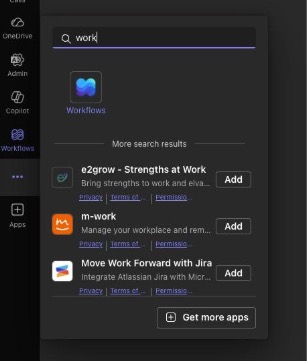
Open the Workflows app in Microsoft Teams.
- In Teams, click Apps in the left navigation.
- Search for Workflows and add it.
- Pin the app if you want faster access later.
-
-
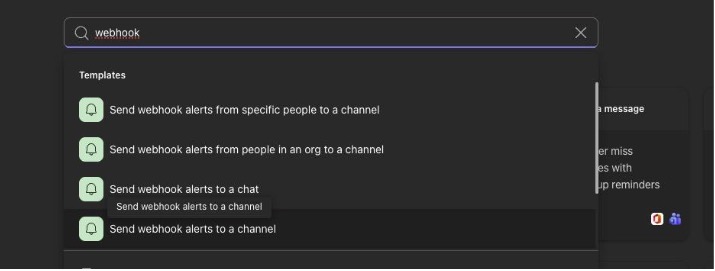
Create a new workflow.
- Open Workflows.
- Select Build from scratch.
- Configure the trigger on the blank workflow canvas.
- If you prefer, start from one of the pre-built templates instead of building the workflow manually.
-
-
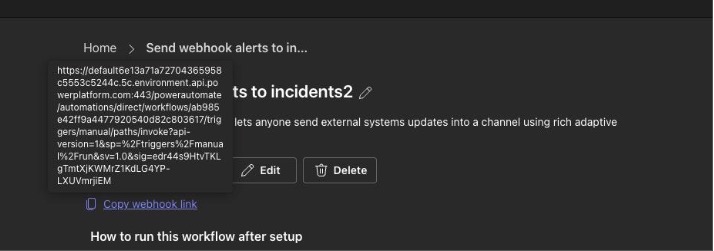
Save the workflow and copy the webhook URL.
- After you save the workflow, Teams generates a webhook URL.
- Copy that URL. You will paste it into Xyte in the next step.
-
Add the webhook URL in Xyte.
- In your Xyte tenant, go to Connections → Integrations → Microsoft Teams.
- Paste the webhook URL into the provided field.
- Click Update.
-

-
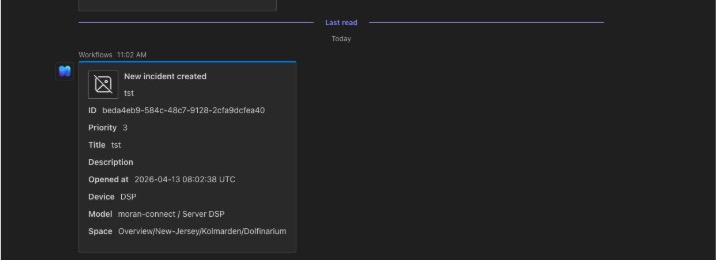
Test the integration.
- Send a test incident from Xyte.
- Confirm the incident notification appears in the Teams channel you selected.
-
Updated about 2 months ago
Did this page help you?