
Open a Device's Own Interface
Two actions on the device page take you out of Xyte and into the device's own management
interface. Which one you get depends on how the device is connected.
Open the device in its cloud platform
Devices that reach Xyte through a cloud connector carry a link straight to their own page in the
vendor's platform, so you don't have to search for the device again on the other side.
- Open the device.
- Click Manage at the top of the device page.
- Click Open in <platform> — for example Open in Poly Lens.
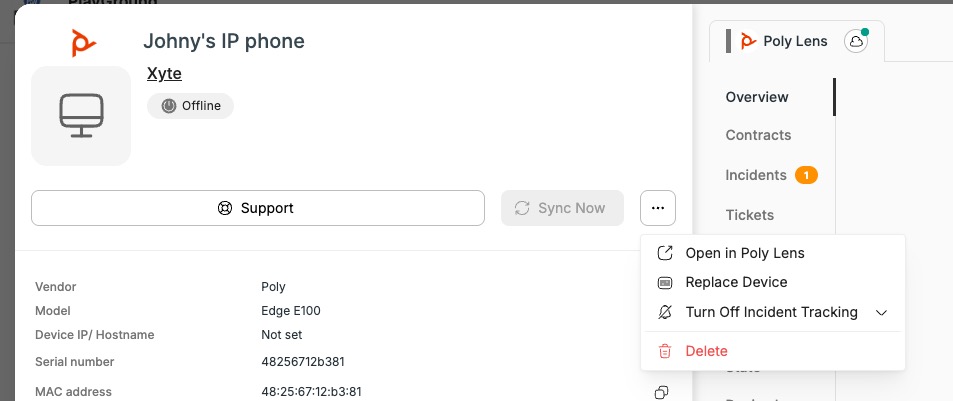
The device's own page in that platform opens in a new tab, already scoped to that device. You
sign in to the platform with your own credentials for it — Xyte does not pass any credentials
through, and this action does not change what you can do in that platform.
The action appears only on devices whose connector supplies the link. Connectors that do include
Poly Lens, Logitech Sync, Zoom, Q-SYS, Crestron XiO Cloud, Neat, Domotz, Yealink YMCS and
Appspace.
This opens the vendor's cloud platform page for the device — the same console you wouldlog in to directly. It is not the web server running on the device itself.
Open a device's local web interface through a tunnel
Device Tunneling reaches the web interface running on the device itself. The device opens a
short-lived encrypted tunnel out to Xyte, and the portal gives you a URL that reaches its local
web server through that tunnel — with no VPN and without being on site.
This works only on devices that connect to Xyte natively, where the vendor has implemented
tunneling in the device firmware and enabled it on the device model. It is not available for
devices monitored through an Edge agent or a cloud connector.
-
Open the device and go to the Commands tab.
-
Run the tunneling command. Its name is set by the vendor — for example Open Web Interface.
-
The portal shows a "connecting" dialog while the device brings the tunnel up.

-
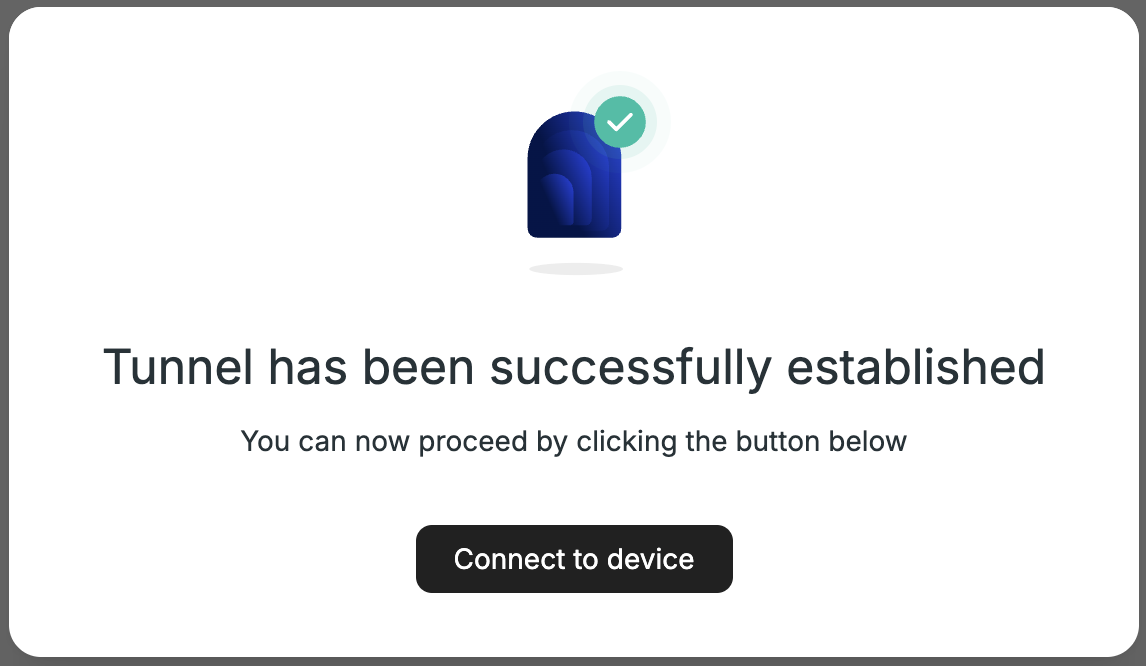
Once the tunnel is established, the dialog updates.
-
Click Connect to device. The device's own web interface opens in a new tab.
The tunnel closes automatically after 15 minutes of inactivity, and the device can close it at any
time.
If the command is not on the Commands tab, that device model does not support tunneling.
Whether to implement it is the vendor's decision — contact the vendor or your Xyte contact.
The device is the side that opens the connection to Xyte. If your site restricts outboundtraffic, the device has to be allowed to reach the Xyte tunnel proxy — ask your Xyte contact
for the address and ports to allow.
Updated about 1 month ago