
Connect an Edge
Install the Edge agent on the customer's local network, then claim it into the portal.
For devices that live on a customer's local network with no cloud of their own, install a Connect+ Edge — a small agent on the LAN that discovers and manages them and streams telemetry back to the portal.
What an Edge gives you
The Edges list shows each agent's firmware version and update status, last sync, customer, online status, and how many devices it manages.
Keep the Edge up to date
The Firmware Version column on Edge → Edges shows each Edge's version and where it stands:
- New version available: a newer Edge version is published. Hover over it to see the target version, then click it to update. A confirmation window names the Edge and the version change (for example, Update New York Office from version 1.3.10 to 1.4.0). Nothing is sent until you confirm.
- Update in progress: the update was sent and the Edge is installing it. The row changes on its own once the Edge reports the new version, so there's no need to click again.
- Up-to-date: the Edge is already on the latest published version.
You need edit access to the Edge's space to start an update. Without it, the status shows as plain text. You can also run Update Version from the Edge's own page (see How to Run a Command and View Its Result), or schedule it with a workflow.
The update command waits up to 15 minutes by default. If the row shows New version available again after that, the update didn't complete. See Reinstall or recover the Edge agent, which covers upgrades that fail.
Install the Edge
Run the Edge installer on a small, always-on machine on the customer's local network — see the Installation guides for Linux, macOS and Windows. When it starts, the Edge outputs a unique Edge ID; you'll need it in the next step.
Connect the Edge
Once the Edge is installed and running, connect (claim) it to the portal:
- In the left navigation, open Edge → Edges and click Connect Edge.
- Choose the Customer the Edge belongs to.
- Enter the Edge ID the installation produced, and a friendly Name (e.g. New York Office).
- Click Connect Edge.
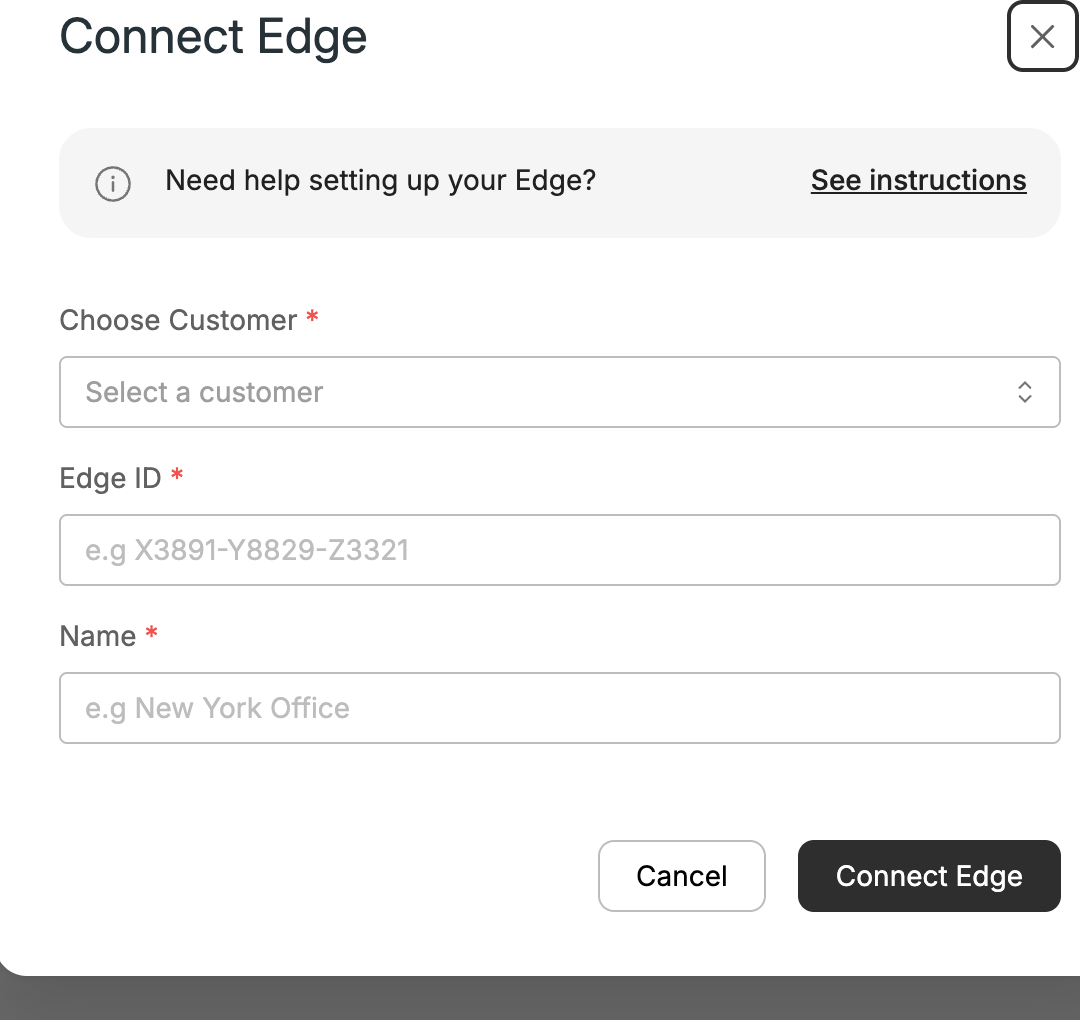
If the Edge can reach the Xyte servers it appears Online within a few minutes. You can then claim local devices through it.
Troubleshooting
See the Edge troubleshooting guide.
Updated about 1 month ago