
Email notifications
Send incident notifications to an email address or distribution list.
Send Xyte incident notifications by email, when an incident opens and when it closes. Set a default address for the whole organization and, if your plan includes Incident Routing, a different address per space.
Starter and Free plansIncident emails go to the single Default email address set on this page. Sending different spaces to different addresses (Incident Routing) is available on Standard and above.
How to set up
- Go to Connections → Integrations and click Manage next to Email.
- Work through the steps:
- New Incident Email Template (optional): the subject and body of the email sent when an incident opens. See the Customize the emails tab.
- Closed Incident Email Template (optional): the same, for when an incident is resolved.
- Filtering (optional): report only incidents at or above a chosen priority. See the Filter by priority tab.
- Enable: set where the emails go and turn the integration on (below).
The Enable step
- Enter the Default email address. Incident emails are sent to this address. Click Save.
- Turn on Email integration enabled.
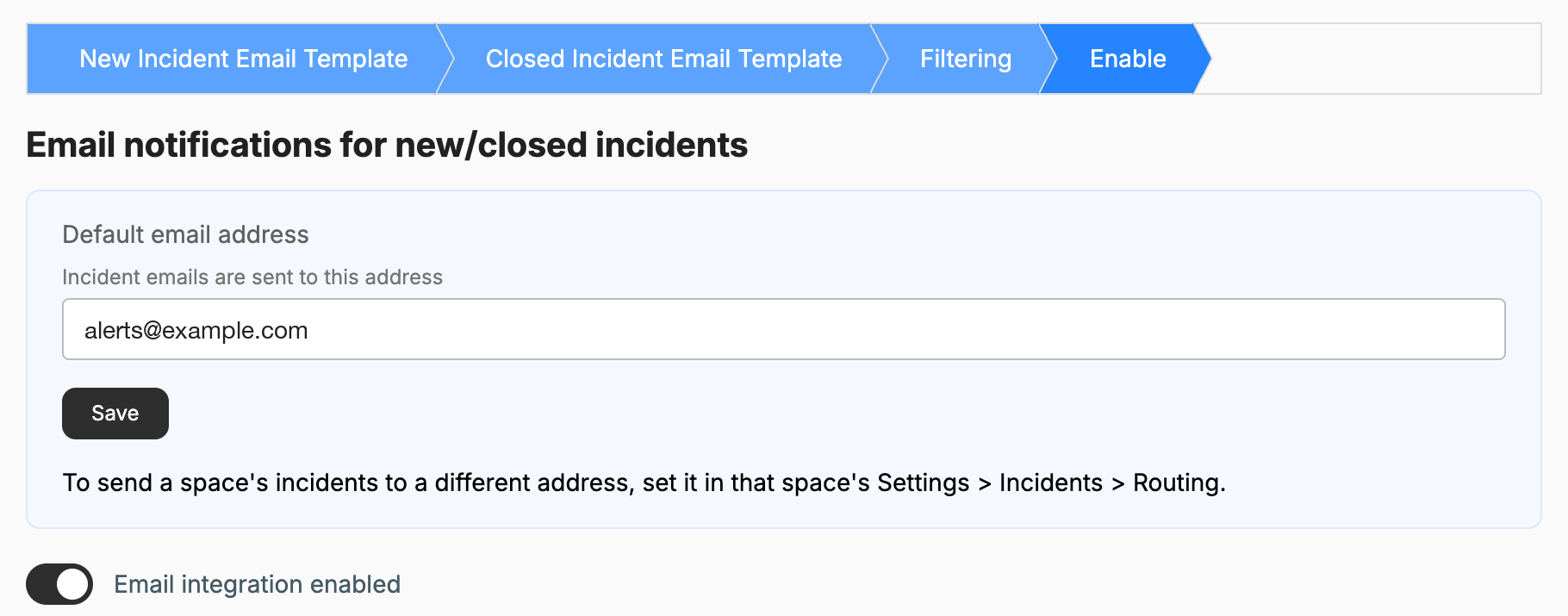
Saving the address does not turn emails onThe Email integration enabled switch must also be on. New organizations start with it off, and it cannot be turned on until a default address is saved.
Every step saves itselfEach step has its own button: Update on the two template steps, Save filtering on Filtering, and Save plus the switch on Enable. Prev / Next only move between steps and save nothing.
Distribution listsTo notify a group, create a mailing list with your email provider and use that list address as the recipient.
Who receives the emails
It depends on whether your plan includes Incident Routing (Standard and above):
| Your plan | Where incident emails go |
|---|---|
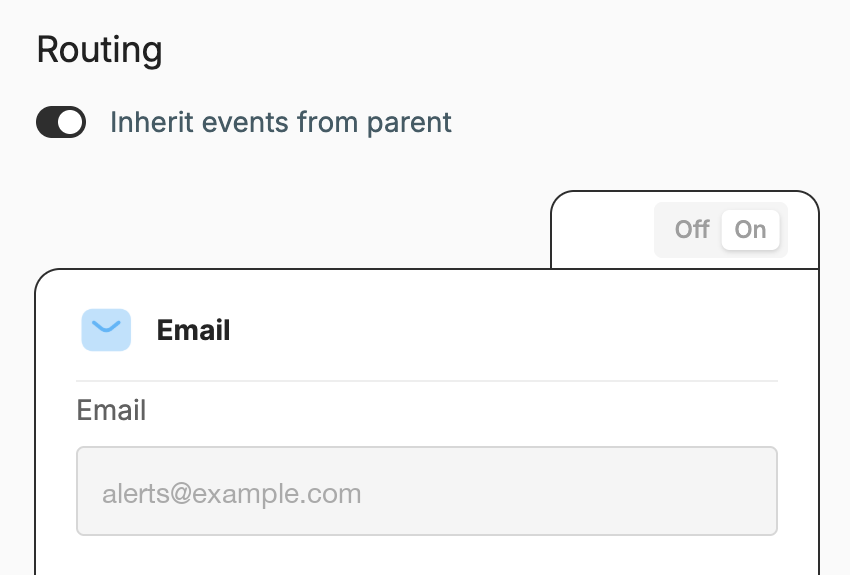
| Standard and above (includes Incident Routing) | Emails follow each space's routing. Saving the Default email address sets it on your top-level space, and every space below inherits it. A space can override it with its own address. To use a different address for a space, open that space's Settings → Incidents → Routing and set it on the Email card. See Space Settings. |
| Starter and Free (no Incident Routing) | Every incident email goes to the Default email address. Per-space routing is not used. The Email page shows a Send Alerts to the Right Team banner with the option to upgrade. |
TimingIf the space has an Incident Notification Delay, the email waits until the delay has passed. An incident that closes within the delay sends no email at all. See Space Settings.
Moved from Settings → NotificationsThe incident email address used to be set under Settings → Notifications. That page has been removed, and the address now lives on the Enable step. An address you saved before is still in place.
Customize the emails (optional)
Two steps hold two independent email templates:
- New Incident Email Template — sent when an incident opens.
- Closed Incident Email Template — sent when it is resolved.
Each has a Subject and an Email Body. Type any text and insert dynamic fields wrapped in asterisks — *title*, *device_name* — which are replaced with that incident's values when the email is sent. For example:
Subject:  Incident *title* — *priority*
Body:     Device *device_name* (*device_model*) at *location* reported: *description*
Email templates use*asterisks*around the field name. The Slack and WebEx message templates use{braces}instead, and the ticketing integrations use{braces}with a different field list — the three are not interchangeable.
Leave a template empty to keep Xyte's standard email. Use Preview to see how your text renders before saving, and Update to save that step.
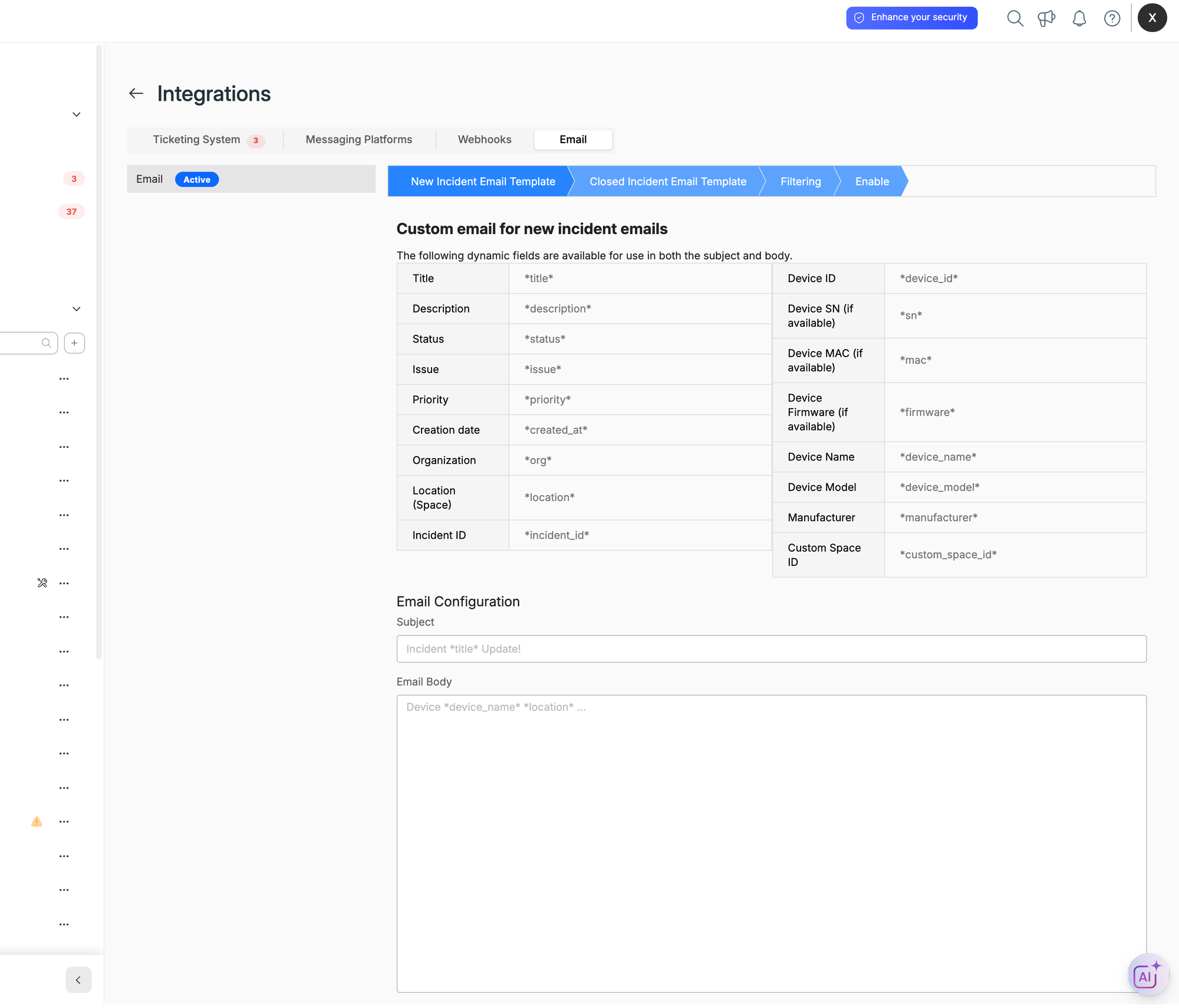
Available dynamic fields
| Field | Insert as |
|---|---|
| Title | *title* |
| Description | *description* |
| Status | *status* |
| Issue | *issue* |
| Priority | *priority* |
| Creation date | *created_at* |
| Organization | *org* |
| Location (space) | *location* |
| Incident ID | *incident_id* |
| Device ID | *device_id* |
| Device serial number (if available) | *sn* |
| Device MAC (if available) | *mac* |
| Device firmware (if available) | *firmware* |
| Device name | *device_name* |
| Device model | *device_model* |
| Manufacturer | *manufacturer* |
| Custom space ID | *custom_space_id* |
The same fields are available in both the subject and the body.
Report only the incidents that matter
The Filtering step limits which incidents send an email at all. Pick a value under Minimum incident priority to report and click Save filtering:
| Option | Emailed |
|---|---|
| No filter — send everything | Every incident (default) |
| Critical and above | Critical only |
| High and above | Critical, High |
| Moderate and above | Critical, High, Moderate |
| Low and above | Critical, High, Moderate, Low |
| Planning and above | Every incident |
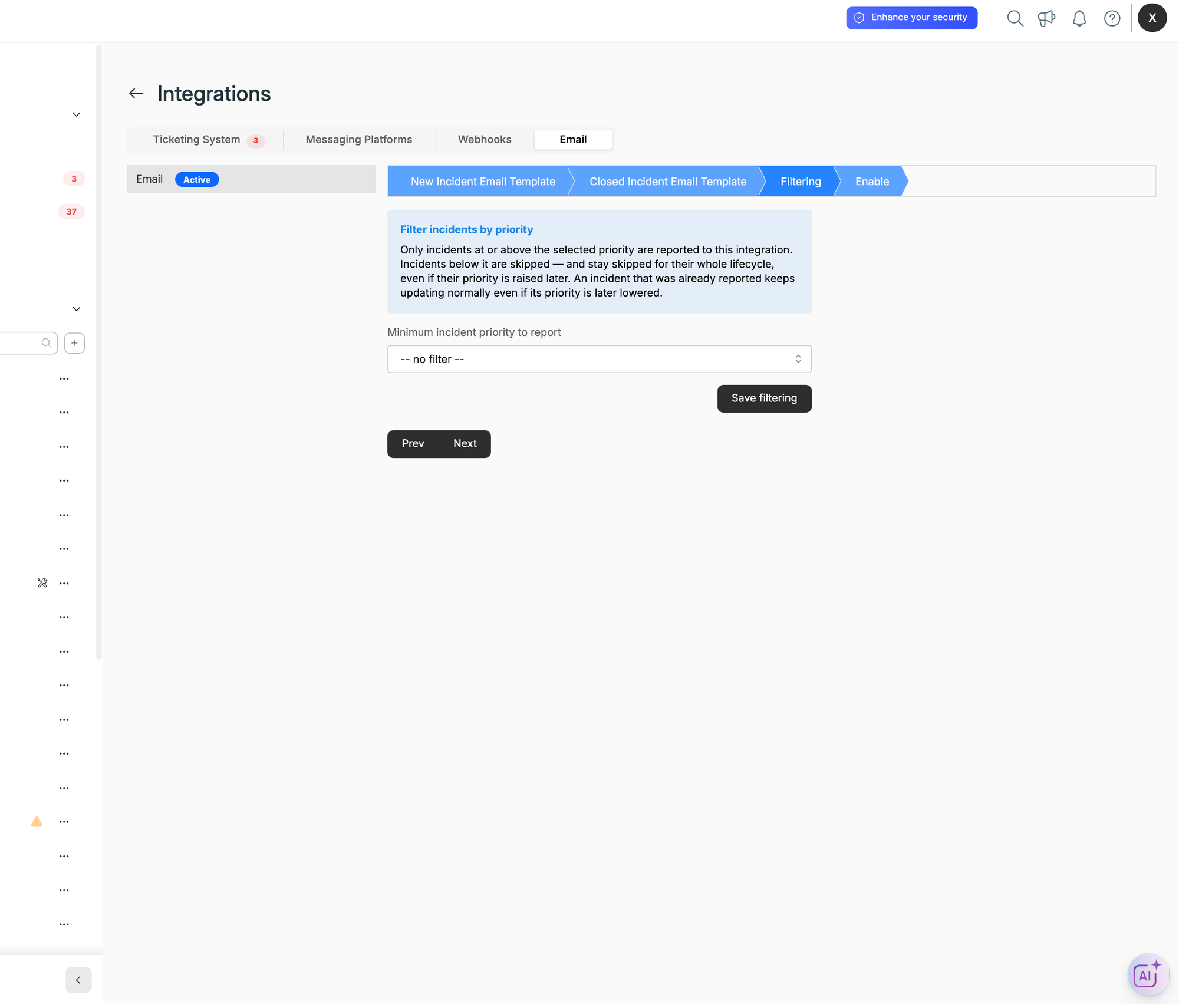
- An incident below the threshold is skipped, and stays skipped for its whole lifecycle — even if someone raises its priority later, and even for its closing email.
- An incident that was already emailed keeps updating normally, even if its priority is later lowered.
- The filter is per integration, so email can be noisier or quieter than your chat recipients.
- You can also set this for all your integrations at once from the Integrations list.
This integration is stable — we haven't had issues that call for a dedicated troubleshooting guide. If you run into a problem, contact [email protected] and we'll help.
Updated 9 days ago