
Secure Edge Installation
Overview
The Secure Edge device is a "Zero Install" device that comes fully pre-installed and pre-configured.
There are two requirements for the device to function:
- Power
- Network access to both:
- Devices to be monitored
- The Xyte data collector (
eu1.edge.xyte.ioon port443)
Installation
- Place the device in a well ventilated location.
- Connect the device to network via one of its 2.6GbE Ethernet ports.
- The network provided should:
- Have a DHCP Server that can assign the device a valid IP.
- Allow IP based access to all devices to be monitored.
- Allow SSL access to
eu1.edge.xyte.ioon port443
- Connect the device to Power
- Give the devices 10 minutes to fully boot and self configure.
- Visit the Xyte portal at https://app.xyte.io/
-
Login / Sign Up
-
Create a customer by clicking the [+] button on the left side pane - right under "Spaces"
-
Visit "Edges" on the left side pane.
-
Click "Connect Edge" button on top right.
-
Select the customer created in previous step.
-
Copy the Edge ID (the device UUID). It is printed at the bottom of the Secure Edge box, next to the small QR — scan that small QR (not the large QR/barcode near the model, serial and MAC labels, which is packaging content only) to get the Edge ID, or copy it manually from there.
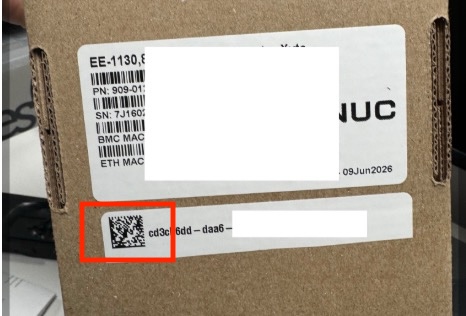
-
Assign a user friendly name.
-
Click "Connect Edge".
-
- If the setup was successful, the Edge is added and you can start claiming devices.
Troubleshooting
Networking
To ensure the Secure Edge is getting correct networking, detach the network cable from the Secure Edge and plug it into a laptop (or similar) device - with Wifi disabled.
- Ensure that the Laptop received an IP
- Test connectivity to the Xyte server:
- On Windows:
- Run
Test-NetConnection xxx.com -Port 443(Look forTcpTestSucceeded : True)
- Run
- On Linux / Mac / Older Windows cmd)
- Run
Runtelnet eu1.edge.xyte.io 443` to check that the network allows reaching the Xyte server. If successful you will see a connection start and be terminated after 5 seconds.
- Run
- On Windows:
- Test connectivity to the internal network:
- Run
ping <ip of a known devices on the network>
- Run
Remote Support
In cases where the selt troubleshooting is not successful, Xyte's support team can remotely connect via a dedicated BMC port.
To allow the remote connection one of the two following methods can be done:
- Network setup
- Connect the BMC port of the Secure Edge to network with access to the internet
- Make the IP assigned to BMC be reachable from the internet (NAT or similar)
- Local machine
- Connect a laptop to the BMC port on the Secure Edge
- Install any Remote Desktop platform on the laptop
- Give Xyte Support team access to remotely connect to the laptop and open the BMC interface directly.
Updated about 2 months ago