
Find your device vendor
Find a manufacturer's directly connected devices in Connect+, and connect your organization to that manufacturer.
Some manufacturers build Xyte support into their devices. These devices connect to Xyte directly, without an Edge or a cloud connector. In Connect+, you add them by picking the manufacturer first, then the model.
What "connected" means
Your organization is connected to a vendor once you've claimed one of their devices. The first claim creates the connection automatically, so there's nothing to request or approve first.
Once you're connected:
- The vendor stays in your vendor list, even if they later stop accepting new customers.
- The vendor can see your organization and the devices you claimed from them. That's what the note in the Add new devices dialog means: By claiming devices, you agree that service providers and device vendors may access device information.

The note at the bottom of the Add new devices dialog.
Find a vendor and claim a device
You need edit access to the space you're adding the device to.
- Open the space, click + Add new in the top-right corner, and choose Connected devices.
- Under Choose a Device Vendor, find the manufacturer:
- Browse the vendor cards, or
- Type at least two characters in Search by vendor or model name. Results are grouped into Models and Vendors. Choosing a model takes you straight to its claim form.
- Click the vendor, then choose the model of your device. Use the search box to narrow down a long list.
- Fill in the claim form, then click Add device. The form depends on the model: a Device Cloud ID, or a MAC Address and Serial Number. See Claiming a native device for each field.
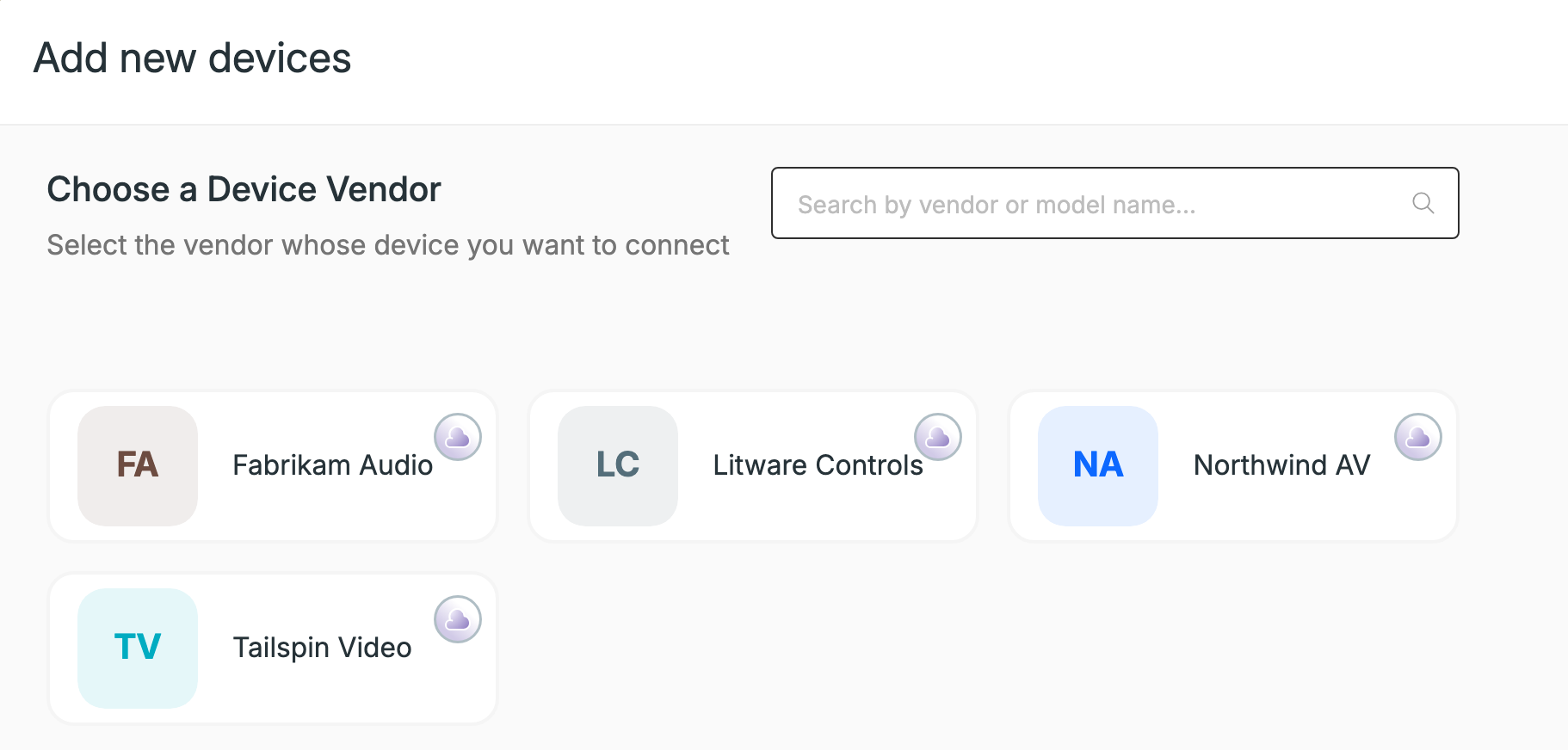
Under Choose a Device Vendor, each card is a vendor you can claim from directly.
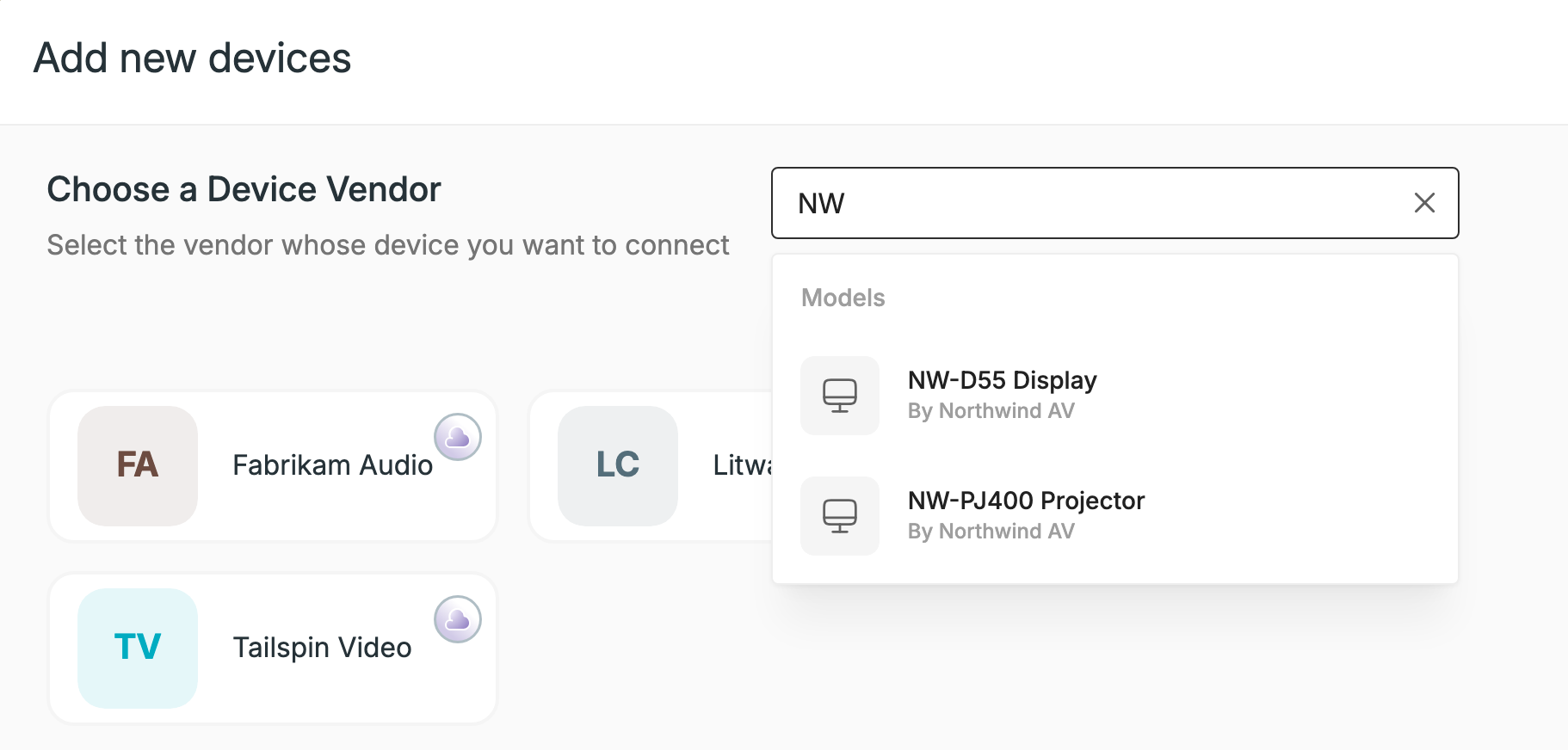
Searching by model name: choosing a result takes you straight to its claim form.
When you see Device claimed successfully, the device is in your organization and you're connected to that vendor.
Vendors you already work withIf your organization is linked to particular vendors, the dialog opens with just those vendors. To see all the others, click Additional vendors and cloud platforms.
Why a vendor or model isn't listed
The vendor list only shows manufacturers that offer direct connection in Connect+. If the one you're looking for is missing:
| What you see | Why |
|---|---|
| The vendor isn't listed, or doesn't come up in search | The vendor isn't accepting new customers without an invite, and you aren't connected to them yet. Ask the vendor to invite or connect you. They can also allow customers to connect on their own. |
| The vendor isn't listed, and you're sure they offer Xyte support | The vendor hasn't published any models in Connect+ yet. |
| The vendor card says Coming soon | The vendor chose to appear in the list before their models are ready, so the card can't be opened yet. Ask the vendor when it will be available. |
| The vendor is listed, but your model isn't | The vendor has published other models, but not yours yet. Ask the vendor. |
If you're a device vendor, the Connect+ onboarding FAQ explains the settings behind each of these.
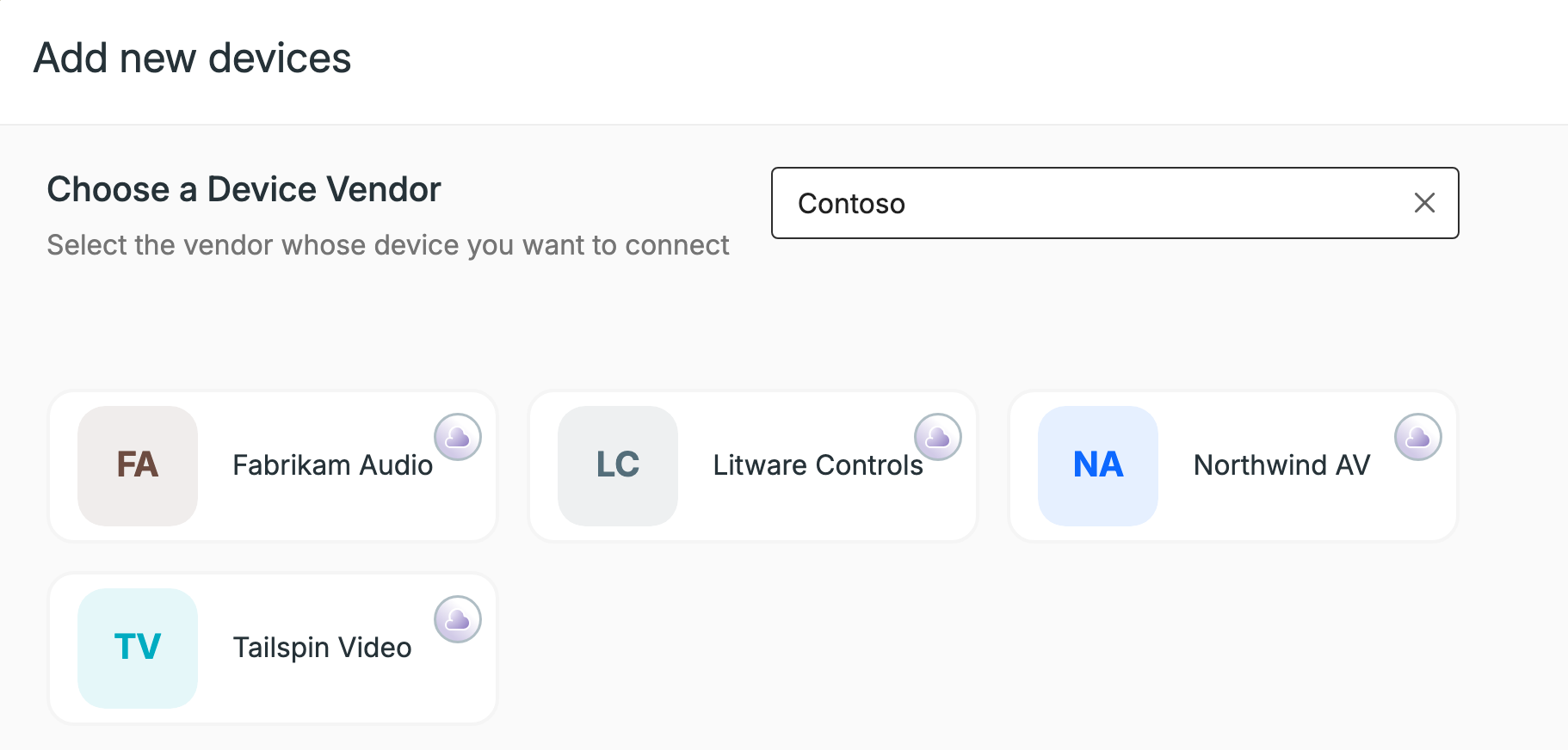
A search for a vendor that isn't accepting new customers, and isn't connected yet, returns nothing.
If the vendor and model are listed but the claim itself fails, see Claiming a native device and Troubleshoot.
If your vendor doesn't offer direct connection
The same dialog has other ways to add a device:
- Connect a Cloud Platform: if the device is managed in the manufacturer's own cloud, sync it through a cloud connector. Only admins can do this.
- Add with Connect+ Edge: under Can't find your vendor?, add any network device through an Edge on your local network. See Claiming local network devices.
- Bulk Add Devices (when shown): send a list of many devices at once.
Under Can't find your vendor?, Add with Connect+ Edge adds a device through an Edge.
Still no match? Request support for your model.
Updated about 1 hour ago