
ConnectWise
This article covers the ConnectWise integration in Xyte.
The integration connects Xyte to ConnectWise Manage, allowing incidents to automatically create and resolve tickets in your ConnectWise service board.
Share the questionnaire firstSend the ConnectWise questionnaire to your ConnectWise admin before you start. It lists every answer you need to complete this setup yourself.
Step 1: Connect to ConnectWise
Navigate to Connections → Integrations → ConnectWise and enter the following credentials.
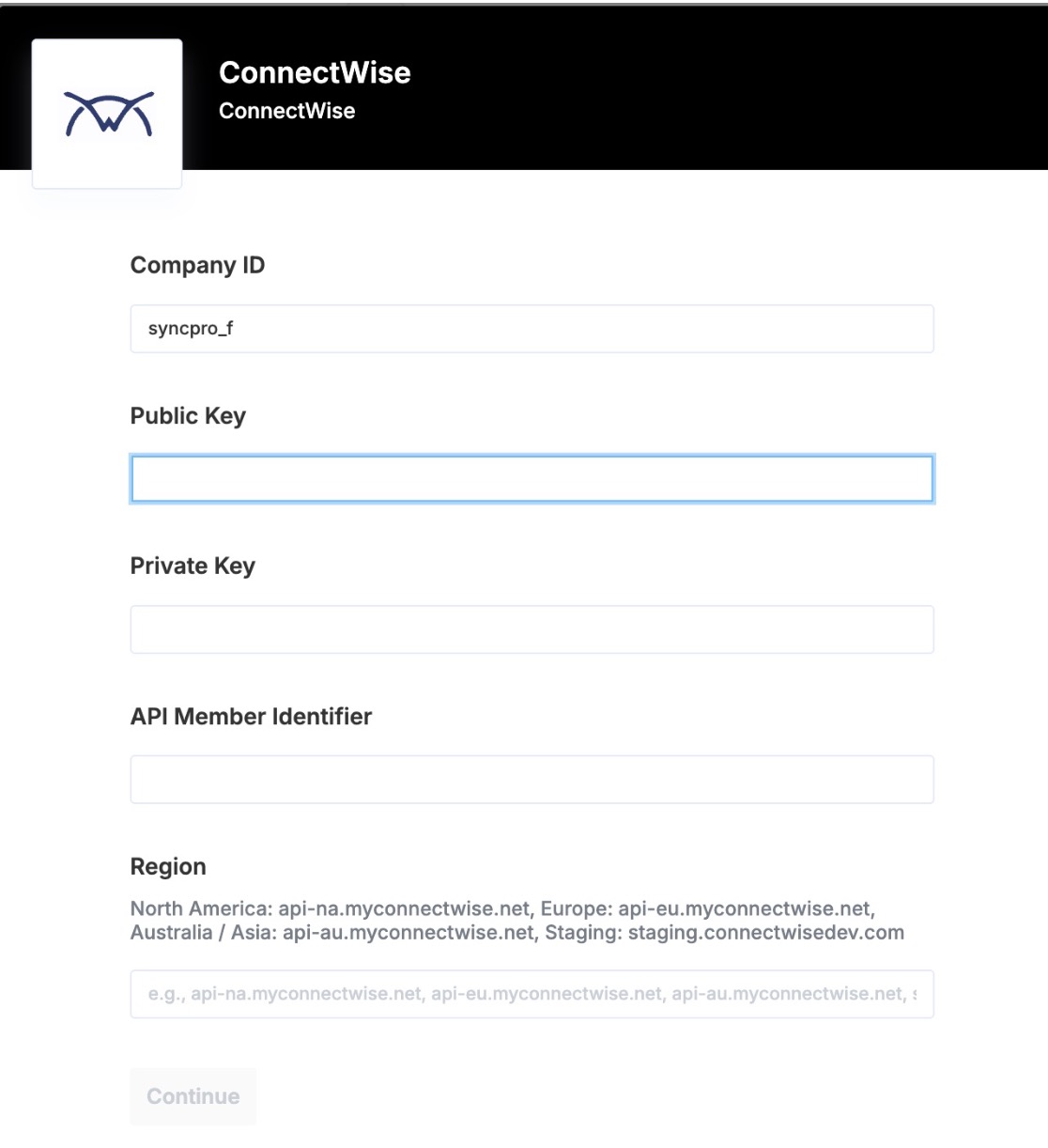
Company ID (Company Identifier)
The company identifier you use when logging in to ConnectWise Manage. This is often shown on the login screen as Company, Company ID, Company Name, or Company Database.
API Member Identifier
The Member ID of the API Member you create for the integration.
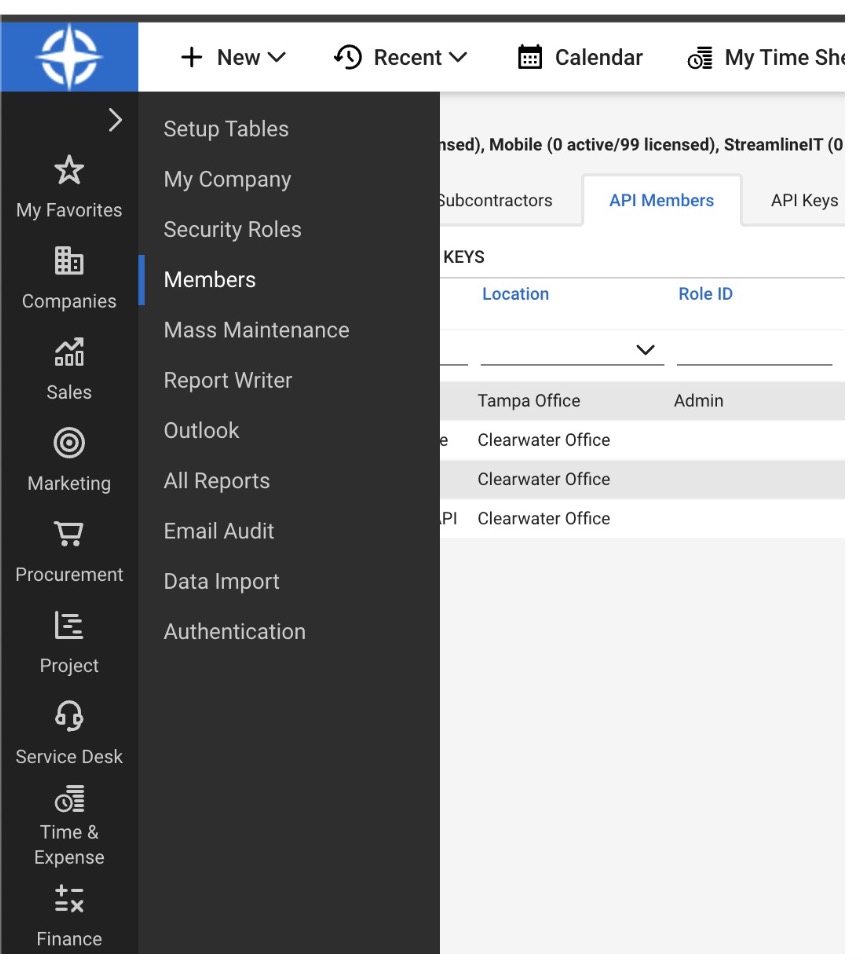
Path: System → Members → API Members → create or open the API Member → copy the Member ID field.
Public Key + Private Key
Generated under the API Member.
Path: System → Members → API Members → select your API Member → API Keys → + (New)
The Private Key is only shown at creation time — copy it immediately before closing.
Region
Maps to your ConnectWise cloud URL. Use the base URL that corresponds to your region:
| Region | URL |
|---|---|
| North America | na.myconnectwise.net |
| Europe | eu.myconnectwise.net |
| Staging | staging.connectwisedev.com |
Many integrations use an api- prefix — for example: api-na.myconnectwise.net.
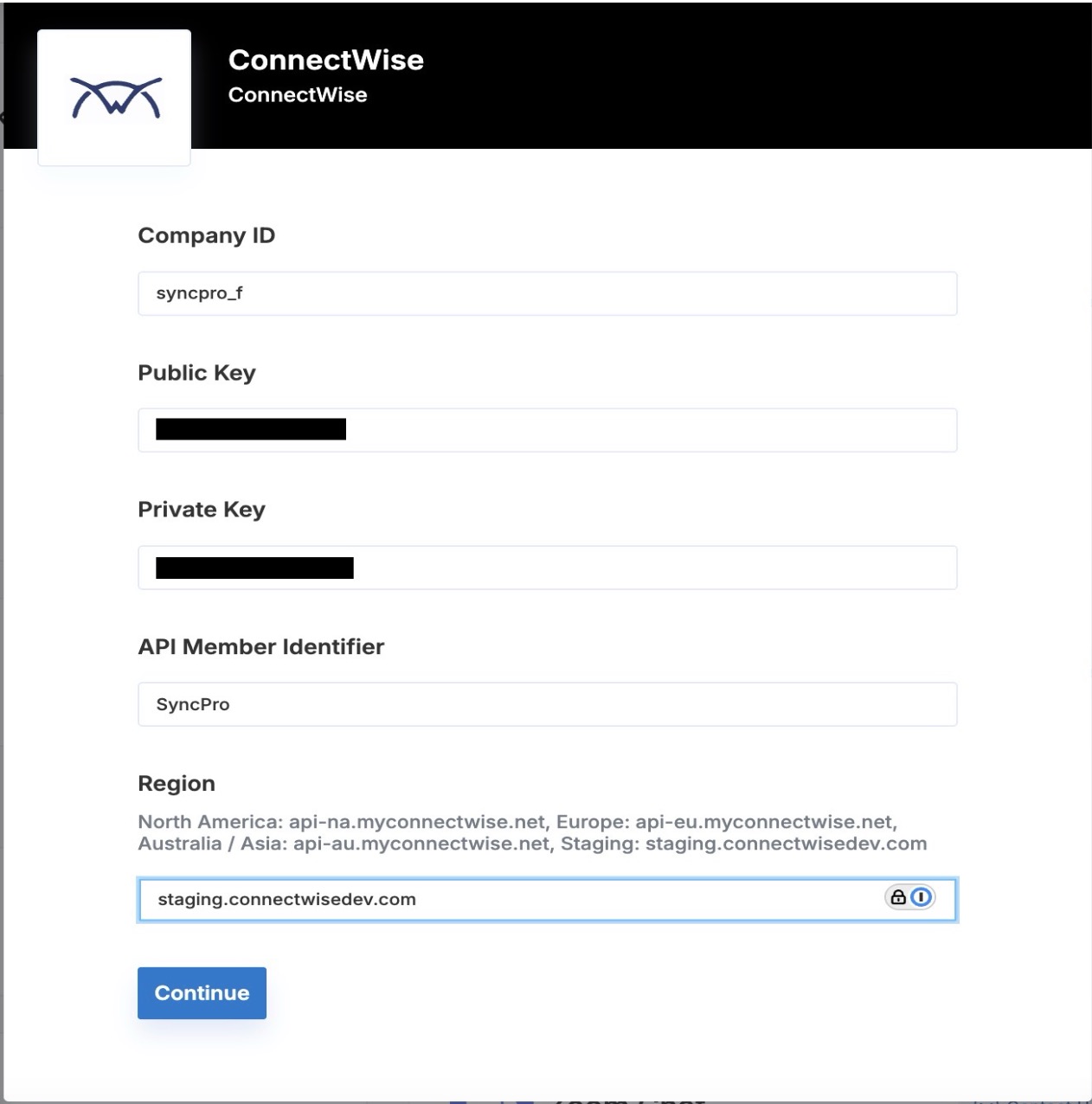
Once connected, your credentials will be hidden in the overview section.
Step 2: Configuration
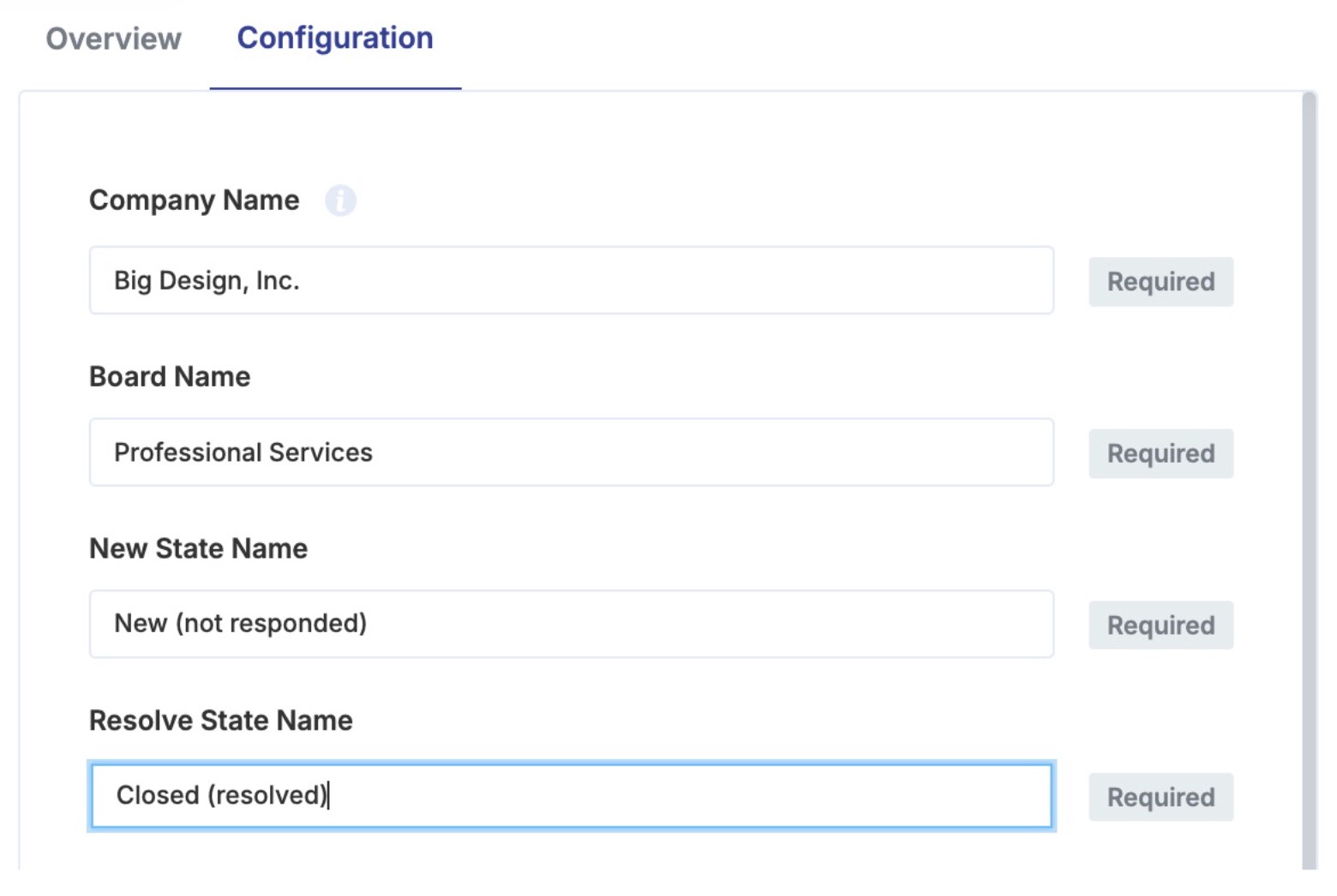
After connecting, configure the following fields.
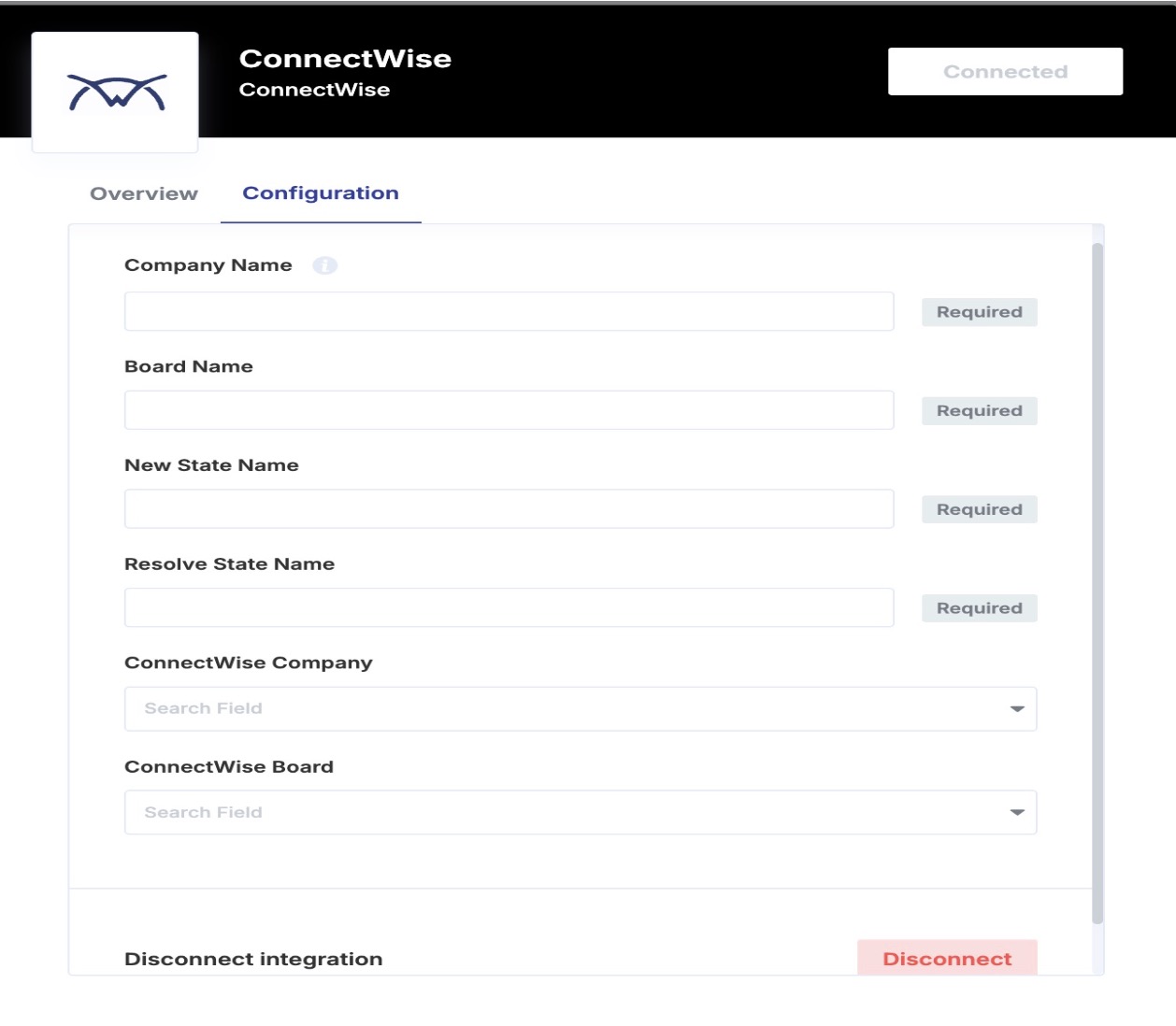
Company name
Go to Service Desk → Service Board to find the company name.
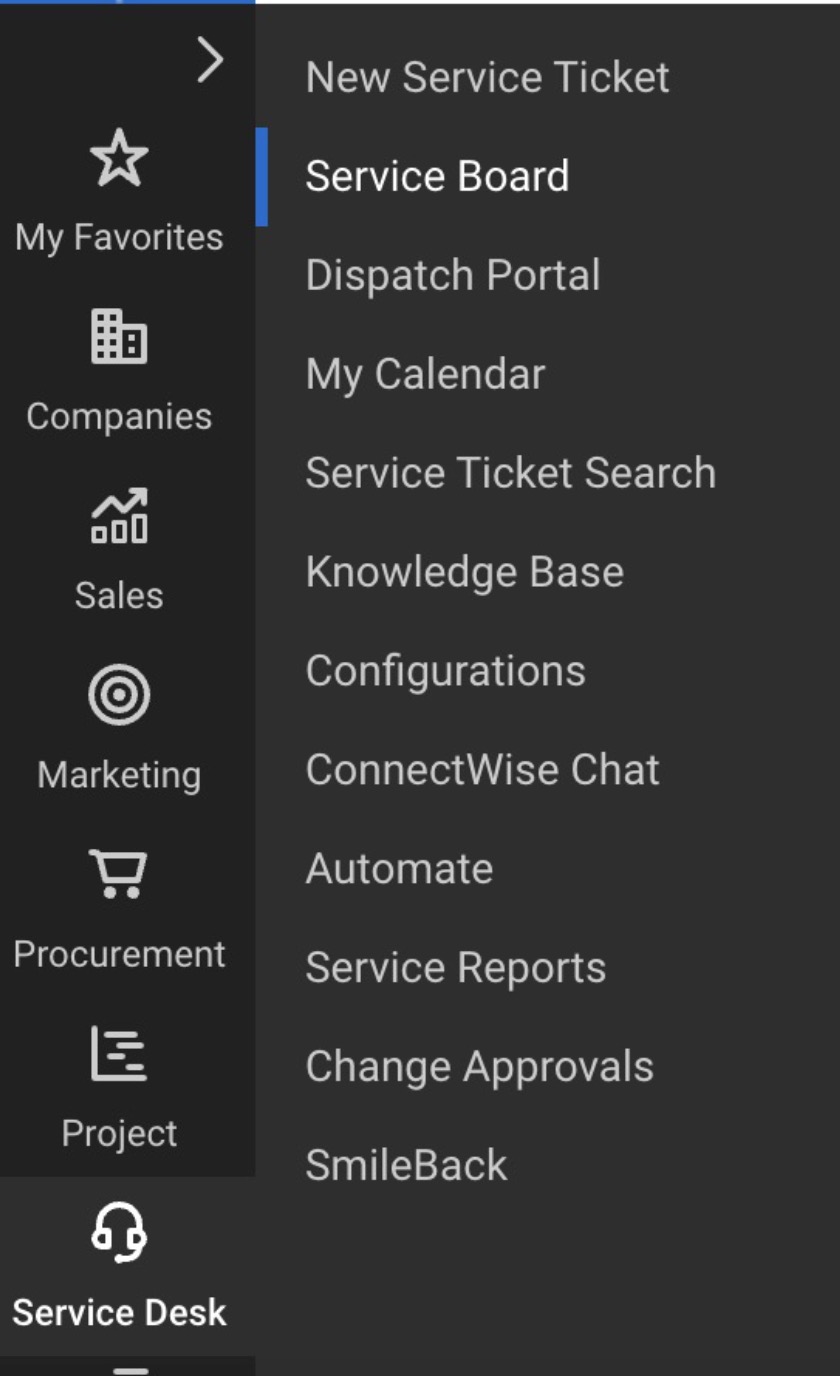
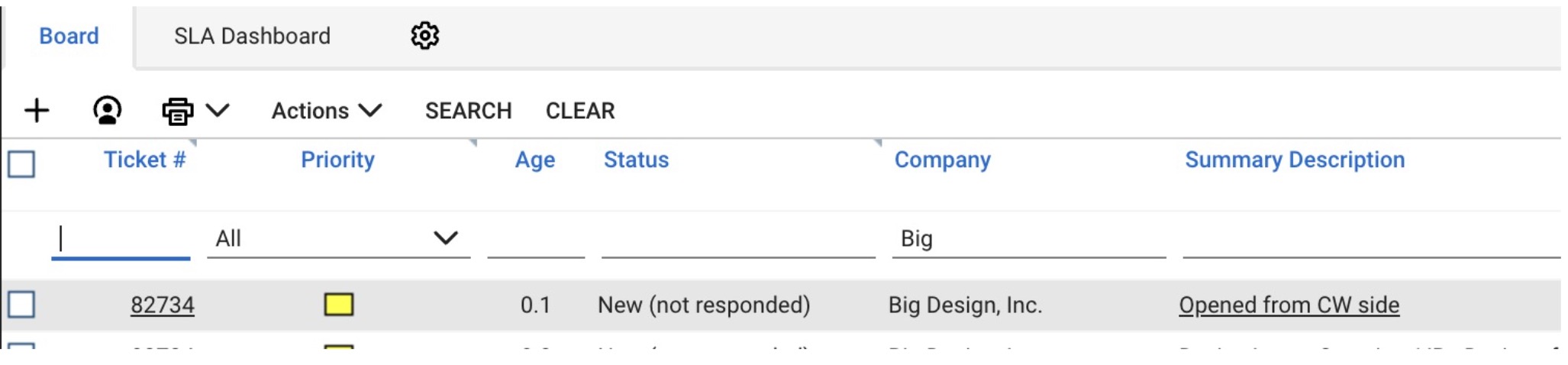
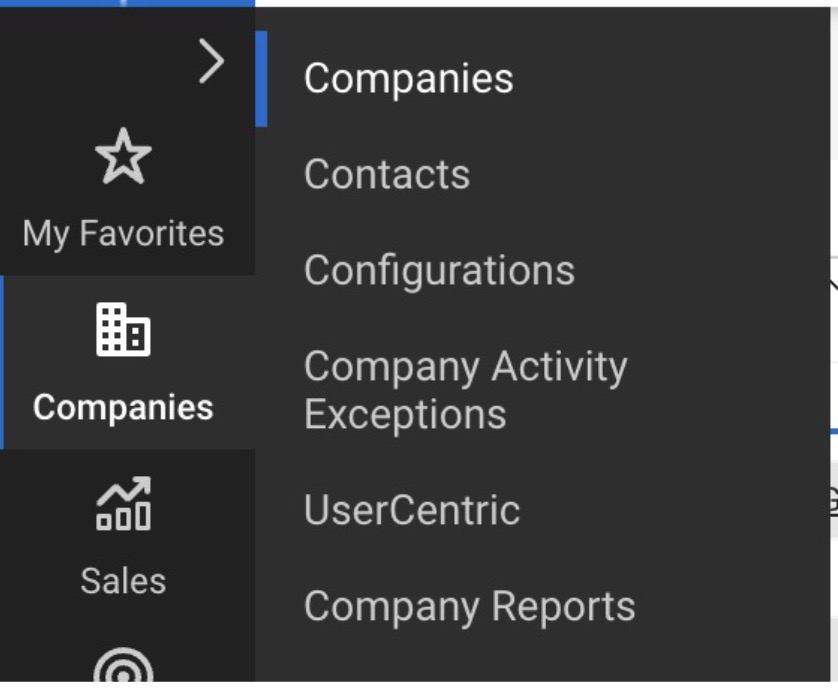
Alternatively, navigate to Companies → Companies.
Board name
Go to Service Desk → Service Board to find the board name.

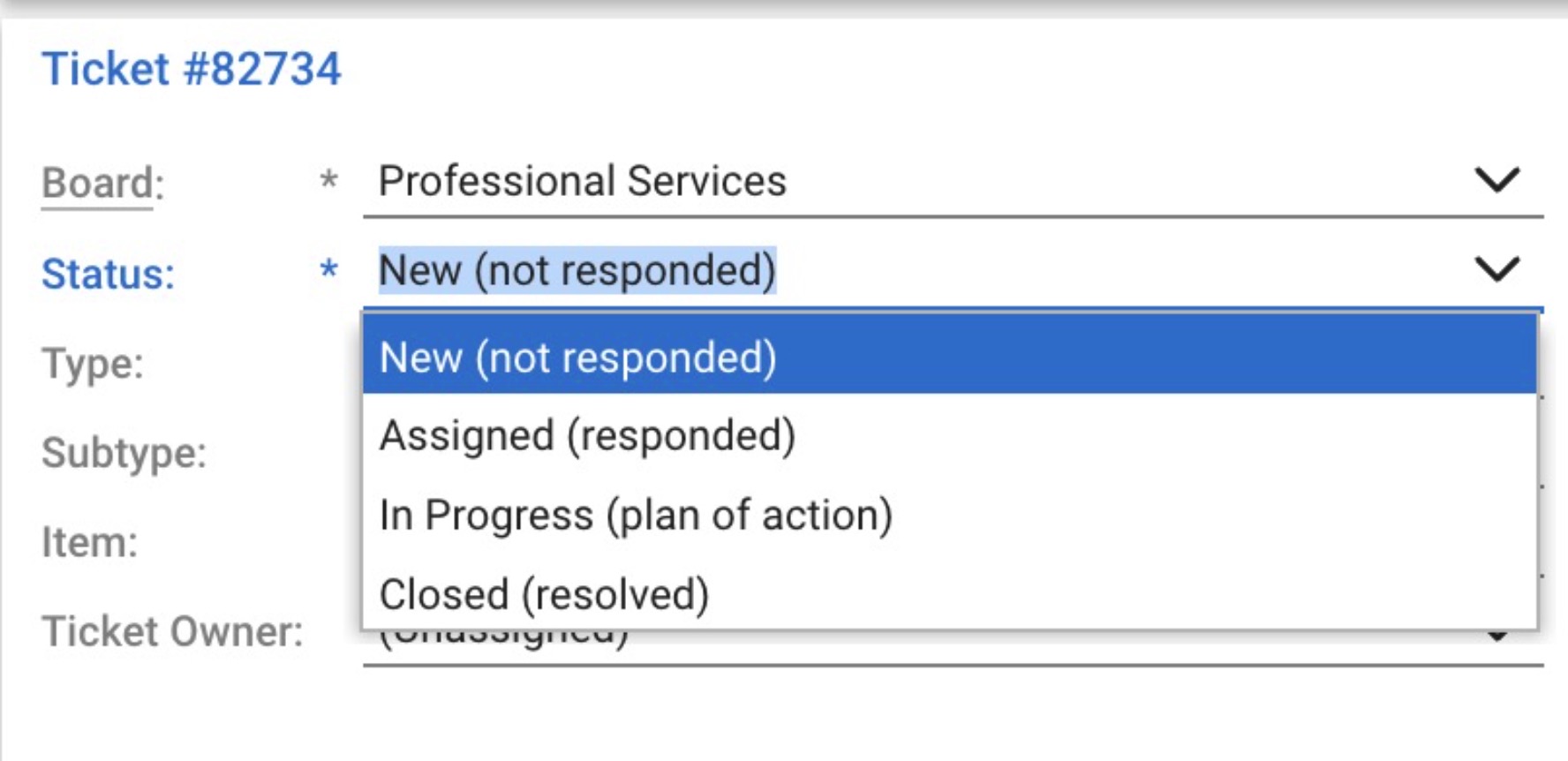
Statuses (New and Closed)
In the Statuses step, pick the New ticket status and the Closed ticket status from the lists, which show the board's statuses. To check which names your board uses (e.g. "New", "In Progress", "Resolved"), open a ticket in ConnectWise and look at the status drop-down.
Step 3: Verify the integration
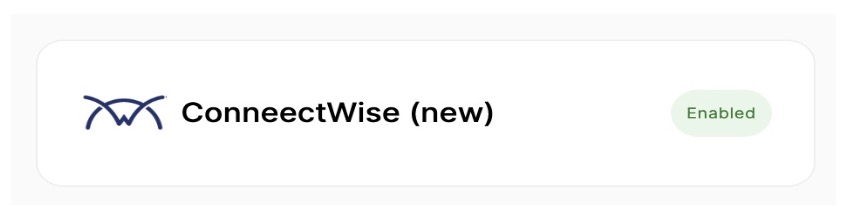
Once all configuration is complete, the integration status should show as active.
Create a test incident in Xyte or wait for an offline device — a corresponding ticket should appear in your ConnectWise service board.
Having trouble with the ConnectWise integration? See the ConnectWise troubleshooting guide.
Updated 7 days ago