
Update a device's firmware
See when your device's manufacturer has released a new version, and install it from the portal.
Device manufacturers can publish new firmware or software versions in Xyte. You install them by running the manufacturer's upgrade command on the device. Which devices support this, and what the command is called, depends on the manufacturer.
Edge agentsThis page covers the devices themselves. To update a Connect+ Edge agent, see Connect an Edge.
See whether an update is available
On the Devices screen:
- Open Devices in the left-hand menu.
- Click the settings cog and turn on the Firmware version column.
Each device shows its current version, plus one of these:
- New version available: the manufacturer has published a newer version.
- Up-to-date: the device runs the newest published version.
- Advanced version: the device runs a version newer than the newest published one.
There's no status when the manufacturer hasn't published firmware in Xyte, or the device doesn't report its version in semantic-version format (for example 2.4.1).
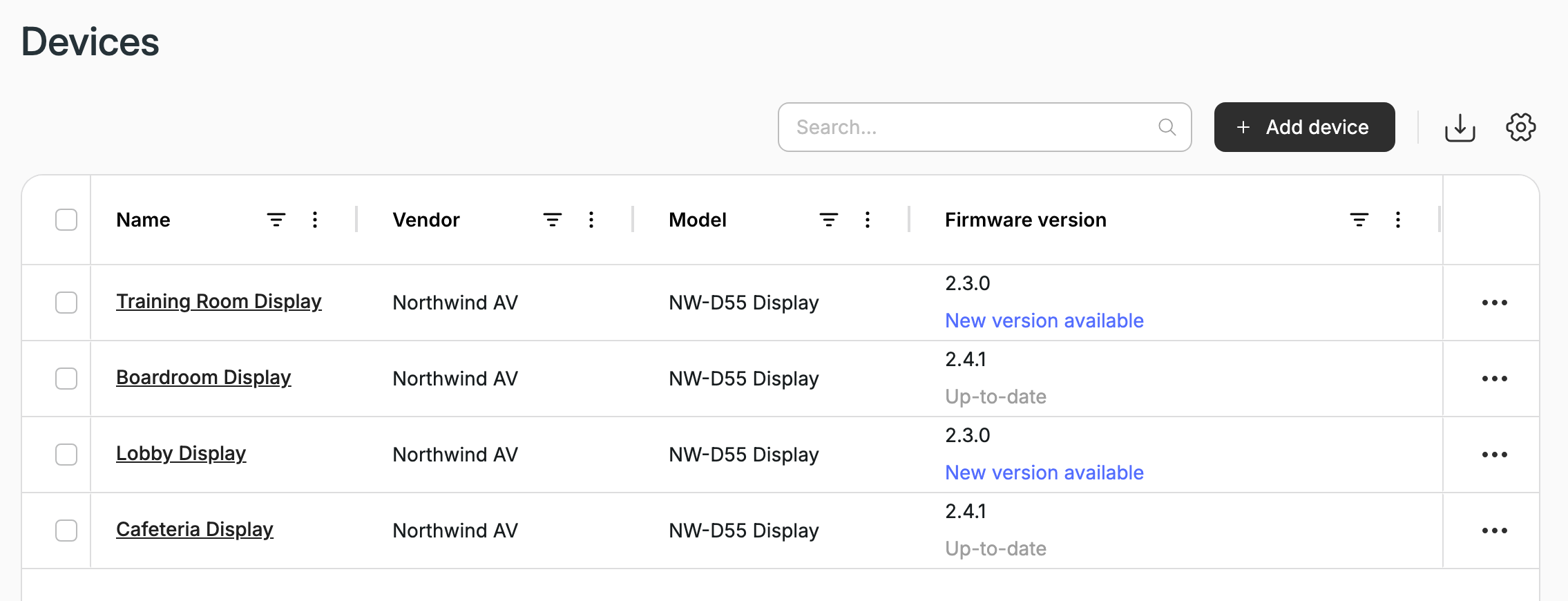
The Firmware version column: devices on 2.3.0 show New version available, devices on the newest published version show Up-to-date.
On a device: the device view shows its Firmware version in the left rail. N/A means the device hasn't reported a version. The manufacturer's files for the model, firmware included, are listed under User & Manufacturer Files on the device's Files tab.
Install an update on one device
- Open the device.
- Click the manufacturer's upgrade command, for example Firmware Upgrade. It's in the Commands panel on the left, or on the device's dashboard.
- In the Send Command dialog, choose the file:
- Partner supplied: files your manufacturer published. The newest version is selected for you. If the manufacturer added a note to the file, it appears as the Manufacturer's note.
- Custom file: a file you upload yourself with Upload file, for example a version your manufacturer's support team sent you.
- Fill in any other fields the command asks for, then click Send.
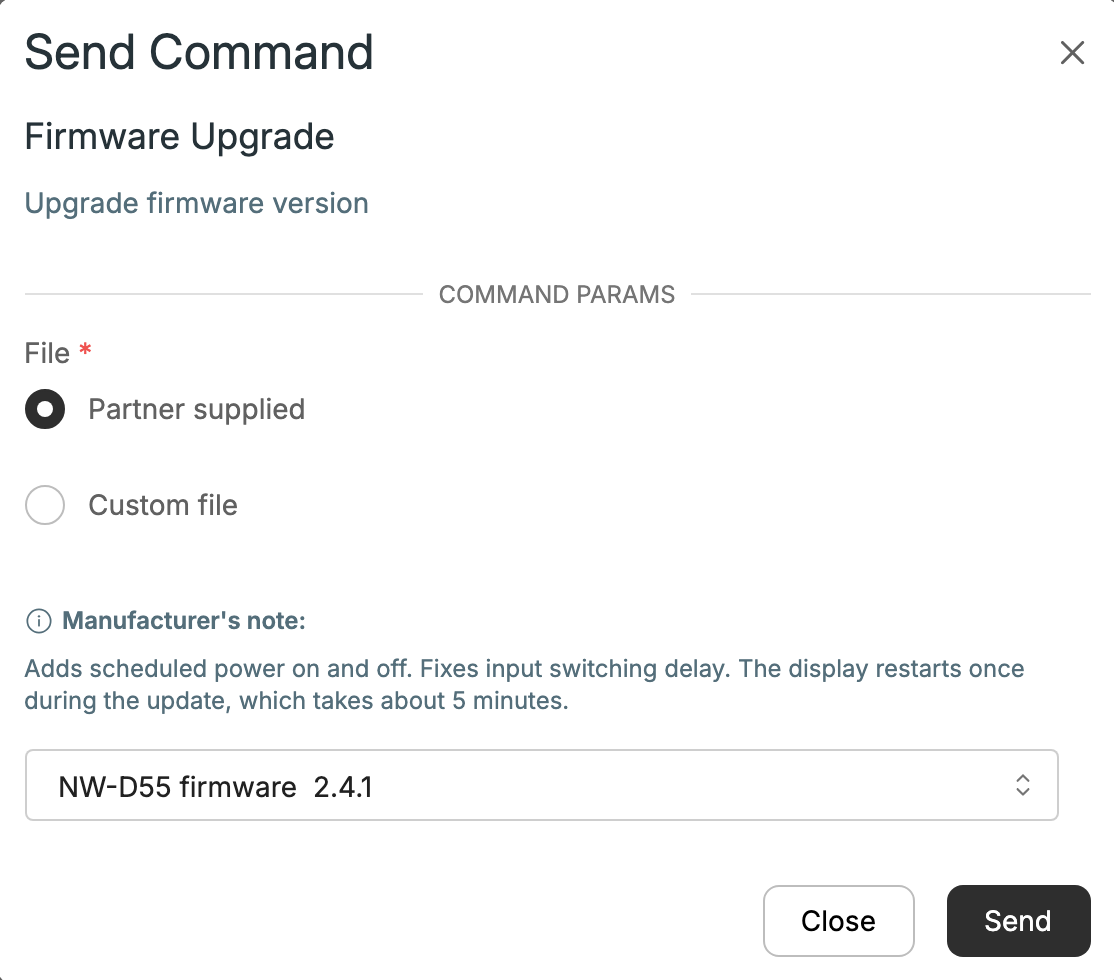
The Send Command dialog: Partner supplied is selected, the newest version is preselected, and the Manufacturer's note is shown above it.
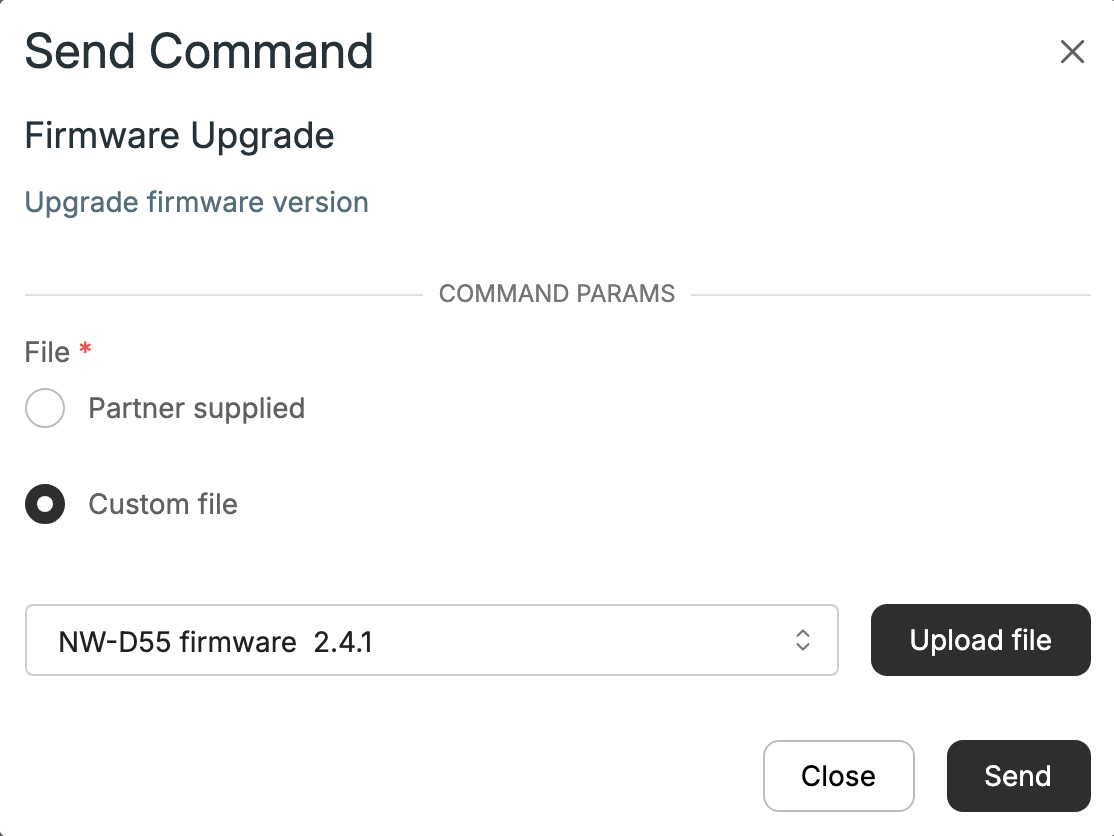
Choose Custom file to upload a file of your own.
The device downloads and installs the file. It may stop responding while it does. The command's status is on the device's Commands tab (see How to Run a Command and View Its Result). The Firmware version changes only after the device restarts and reports its new version.
Update several devices at once
- On the Devices screen, check the devices you want to update. They must all be the same model.
- Open Commands in the bar at the bottom of the list, and choose the upgrade command.
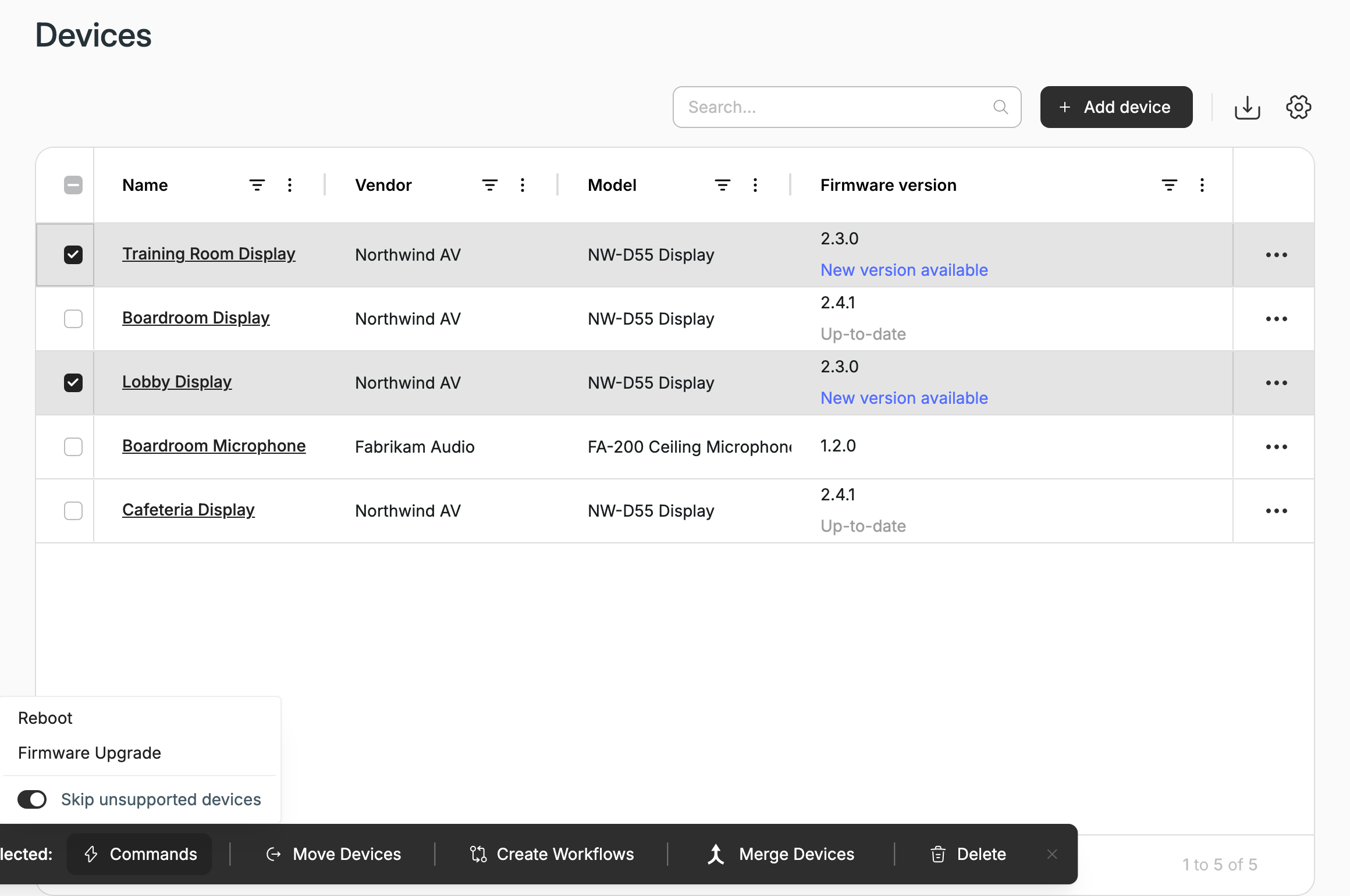
With devices selected, the bar at the bottom of the list offers Commands. Firmware Upgrade is listed because both devices are the same model.
- Choose the file and click Send, as above.
If your selection mixes models, commands that need a file aren't offered.
Schedule an update
To run the upgrade at a set time, for example outside office hours, create a workflow with the upgrade command. Commands that need a file can only be scheduled once, not as a recurring workflow.
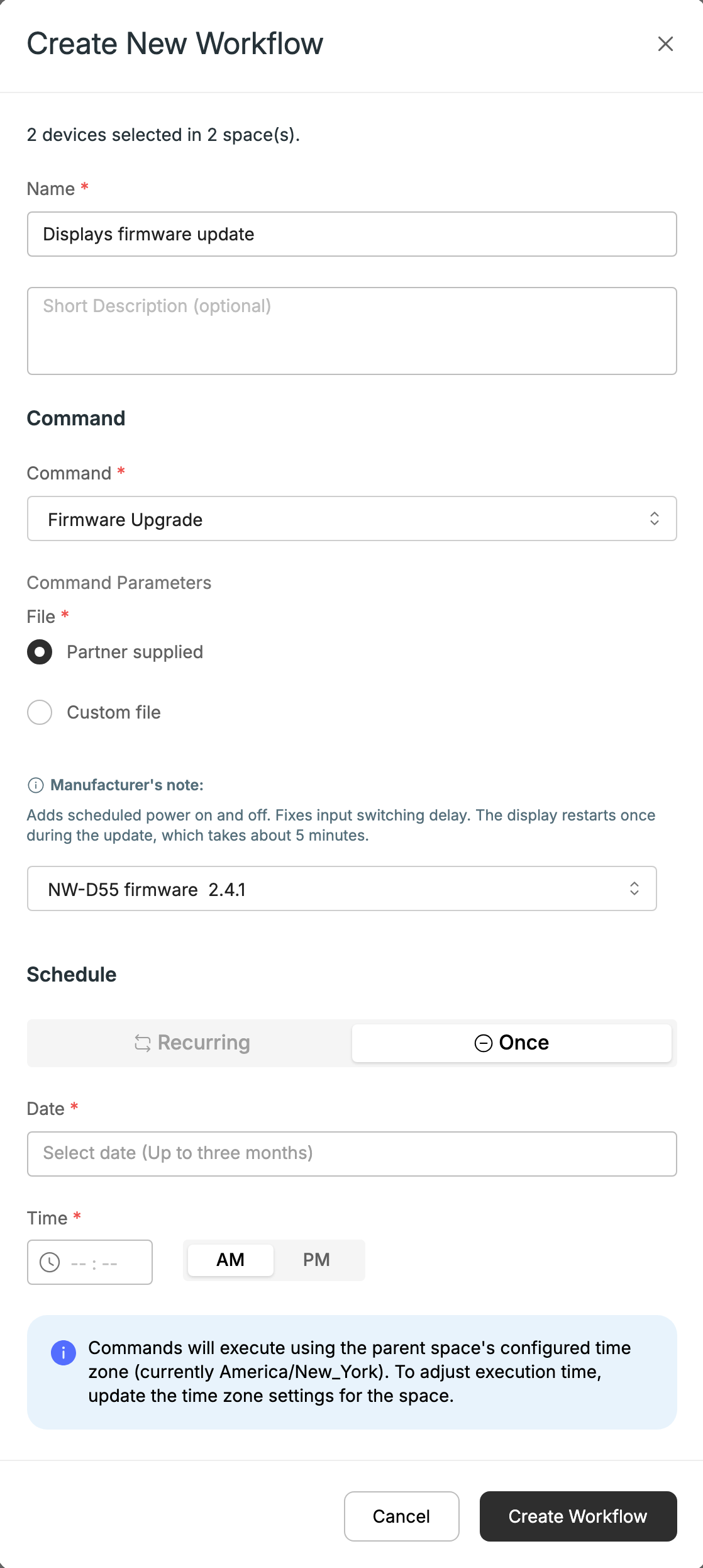
A workflow for the upgrade command: Recurring is greyed out, so it runs once at the date and time you pick.
I don't see an upgrade command
The manufacturer decides which commands a model has. If your device has no upgrade command, the manufacturer hasn't set up upgrades for that model in Xyte. Contact them for their update process. If the command is there but no files appear under Partner supplied, you can still install a file you have yourself: choose Custom file and upload it.
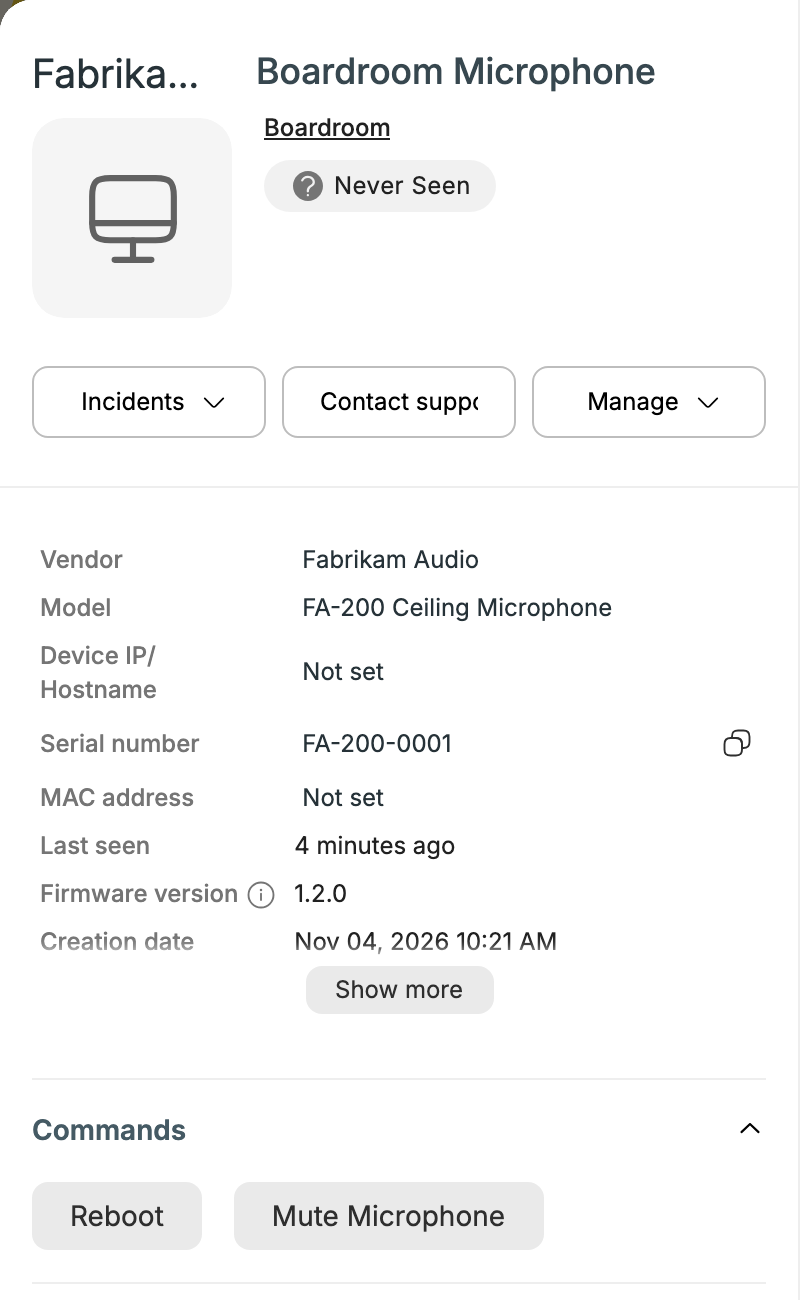
This device's model has no upgrade command: the Commands panel shows only Reboot and Mute Microphone.
Updated about 1 hour ago