
Yealink Management Cloud Service
Sync Yealink devices into your Xyte tenant via the Yealink Management Cloud Service (YMCS).
Connect the Yealink Management Cloud Service (YMCS) to sync your Yealink devices into your Xyte tenant and manage them alongside every other device — health, status and firmware, all in one place.
API Access Requirements
To connect Yealink you need:
- A YMCS account — an enterprise (or channel) account on the Yealink Management Cloud Service, signed in at your regional portal (for example,
us.ymcs.yealink.com). - Admin access — the account must be able to open System Management → API Service.
- API credentials — an AccessKey ID and AccessKey Secret generated in YMCS (see below).
YMCS accounts are provisioned through Yealink resellers/distributors. If you don't have one, contact your distributor or open a ticket at ticket.yealink.com.
Get your API credentials
Step 1 — Sign in to YMCS
Open your regional Yealink Management Cloud Service portal and sign in with an admin account.
Step 2 — Open System Management → API Service
In the left-hand menu, go to System Management, then API Service.
Step 3 — Acquire your AccessKey ID and Secret
Click Acquire to generate an API client. YMCS creates an AccessKey ID and an AccessKey Secret — the two values Xyte needs.
Copy the AccessKey Secret now and store it somewhere safe. Depending on your YMCS version, the secret may only be shown once.
Step 4 — Enter the credentials in Xyte
-
In Xyte, open Connections → Cloud Connectors, click Add connector, and pick Yealink Management Cloud Service. Choose the Customer and Space the devices should land in.
-
On the API Configuration step, paste your AccessKey ID and AccessKey Secret, then confirm the connection.
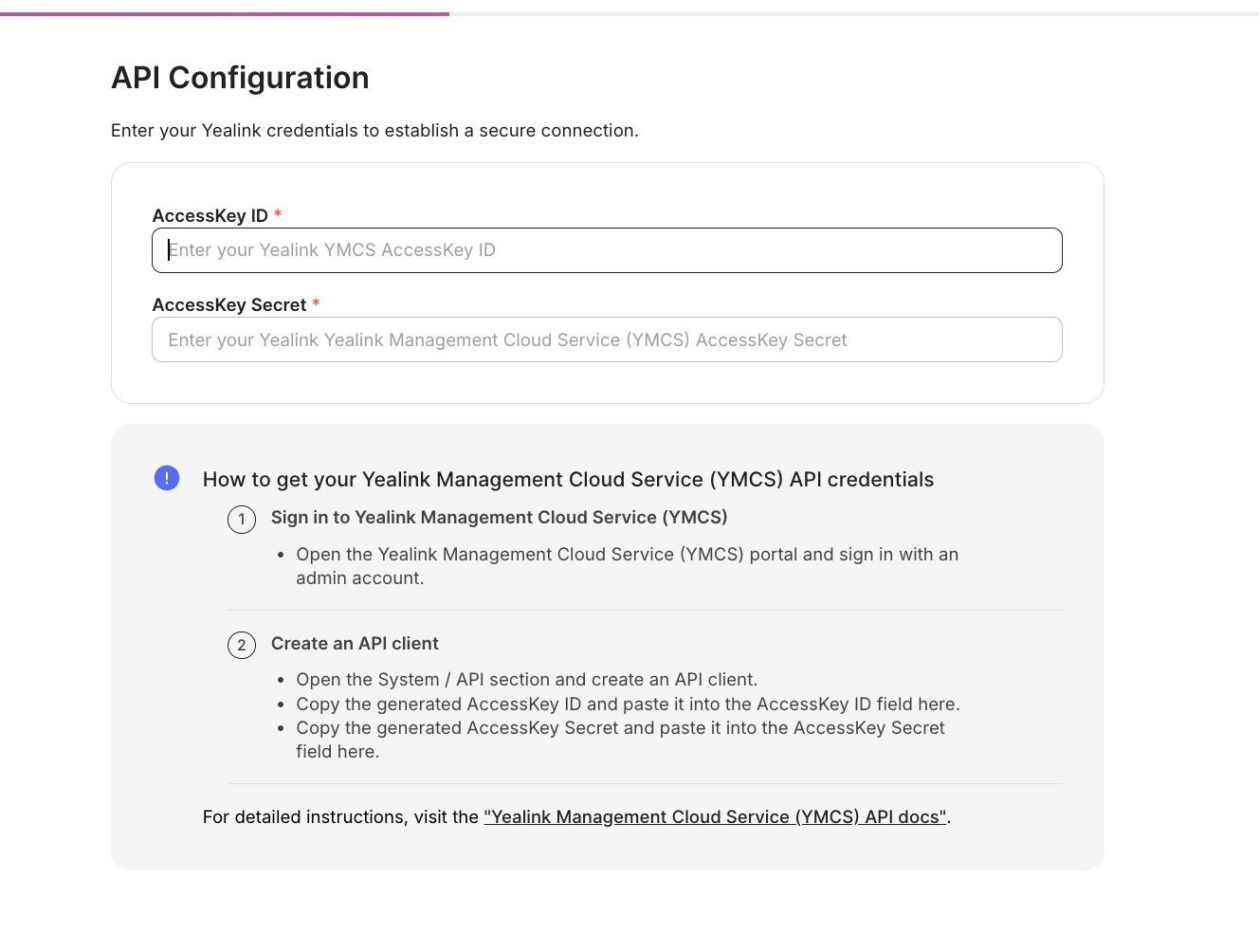
Your Yealink devices import and begin reporting status.
Troubleshooting
| Symptom | Resolution |
|---|---|
| Connection fails right after entering credentials | Re-check the AccessKey ID and Secret for stray spaces. If needed, Acquire a new API client in YMCS and re-enter both values. |
| Devices don't appear | Confirm the devices are enrolled in your YMCS tenant and that the account/API client has access to them. |
| "Unauthorized" or expired | Regenerate the AccessKey in YMCS, then re-authenticate the connector in Xyte. |
Additional information
Connector root space name: Yealink
For full API details, see the Yealink Management Cloud Service documentation.
Updated about 9 hours ago